Documents and pages
Document settings, spreads, the Scrapbook and the Trash.
Document Settings
For a document that is not being shared, you can change its settings after creating it. On Mac, choose File ▸ Document Settings… (⌘⇧D), or press the gear button in the page list. On iPad, press the gear button in the page list.
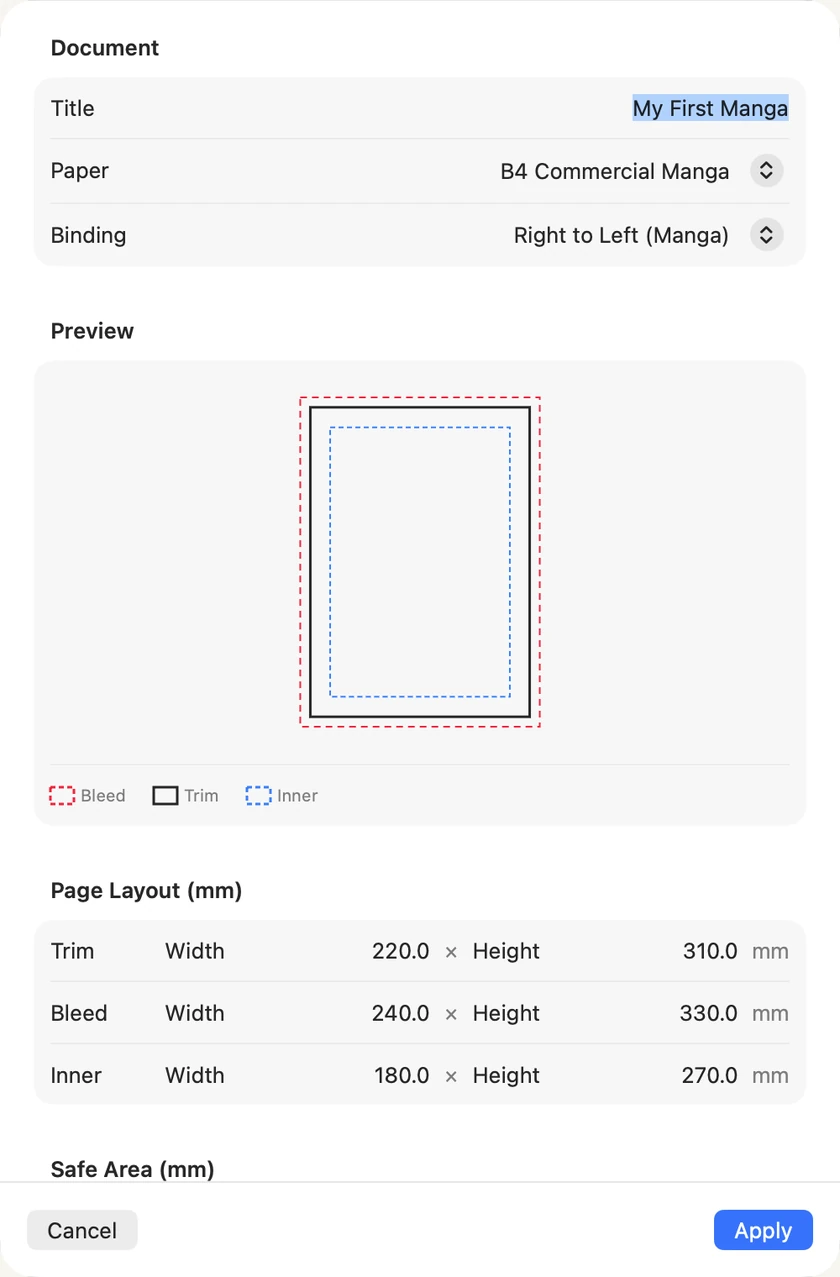
- Paper — B4 Commercial Manga, B5 Doujinshi, or Custom. Choosing a preset fills in the sizes below; Custom lets you set them yourself.
- Binding — Right to Left (Manga), Left to Right (Western), or Single Page.
- Trim is the finished page, where the paper is cut. Bleed is a little extra outside it: art that runs off the page must reach the bleed line, so no white strip shows after cutting. Inner is the area that is safe for faces and words.
- Safe Area — margins, in millimetres. You can leave them as they are.
- Frame Defaults, at the bottom — Border width, the line around every panel. More in Frames and panels.
If you print, ask your printer for these numbers and type them in. Choose Apply to change the document.
Choose the paper before you draw. Changing it later does not resize what is already drawn. The panels are fitted to the new paper, but drawings, balloons and text stay where they were, at the size they were. Going to a smaller paper, a balloon can end up cut off by its panel or left outside the page. A page in the page list keeps its old picture until you open it.
Pages and spreads
A book is read two pages at a time. The left column of the page list shows those pairs, called spreads; page 1 sits alone, as the first page of a book does.
Adding one page in the middle pushes every later page across: a page that was on the right is now on the left. That matters once you have drawn them, because a page is composed for its side. To add pages without moving any, right-click a pair in the left column and choose Insert Spread Before or Insert Spread After: it adds two pages at once, and nothing changes side.
Copy and duplicate pages
Right-click a page for Duplicate Page, Copy Page and Paste Page. A copied page can be pasted into another open document: choose Copy Page, go to the other document's page list, right-click a page there and choose Paste Page. The copy lands after that page, with everything on it still editable. Both documents must use the same paper size: if they differ, nothing is pasted.
On iPad, touch and hold a page for the same menu. Choose Copy Page, tap Documents to go back, open the other document, touch and hold a page there and choose Paste Page.
The Scrapbook and the Trash
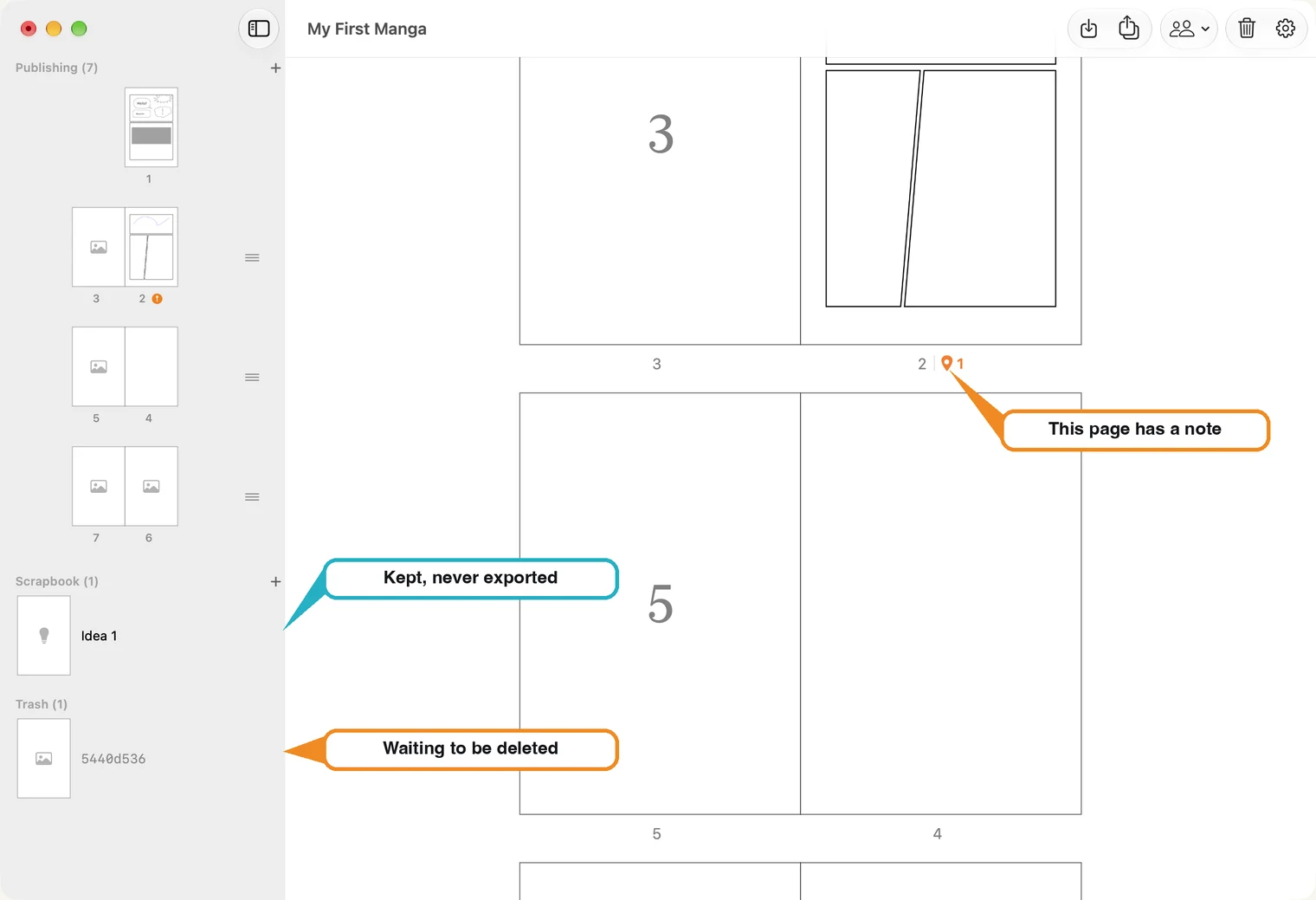
The Scrapbook holds pages that are not part of the book: sketches, ideas, a panel you may use one day. They have names instead of numbers and are never exported. Press the + beside Scrapbook to add one.
The Trash appears when you remove a page with Move Page … to Trash in its menu. The page waits there until you decide.
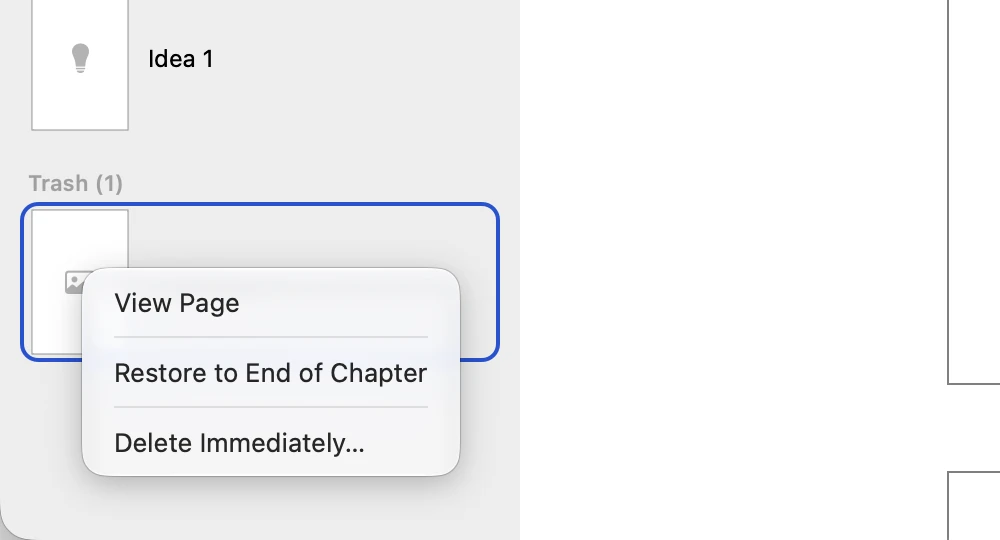
- View Page opens it without bringing it back, so you can see what it was.
- Restore to End of Chapter puts it back as the last of your Publishing pages.
- Delete Immediately… removes it for good.
In a right-to-left or left-to-right book, moving a page from the middle to the Trash leaves an empty page in its place, so later pages stay on their sides and the book keeps the same page count. Restoring that page adds it at the end, making the book one page longer. Permanently deleting it from the Trash leaves the blank page in place for you to draw on. Removing the last page, or a page in Single Page binding, leaves no blank placeholder.
While the Trash holds a page, a trash can also appears in the toolbar of the page list.
Press the trash can to open the sidebar, where the Trash is. Pressing it deletes nothing.
From the Scrapbook into the book. Right-click a Scrapbook page (on iPad, touch and hold it). Copy to Publishing adds a copy at the end of the book and leaves the idea in the Scrapbook. Move to Publishing moves it there. Delete Idea removes it for good, after asking.