Export, and MangaLoft Plus
A file out of the app. Needs MangaLoft Plus.
1. Export the whole manga
Go to the page list and choose File ▸ Export Document… (⌘E). Without MangaLoft Plus you see the plans first; see step 3.
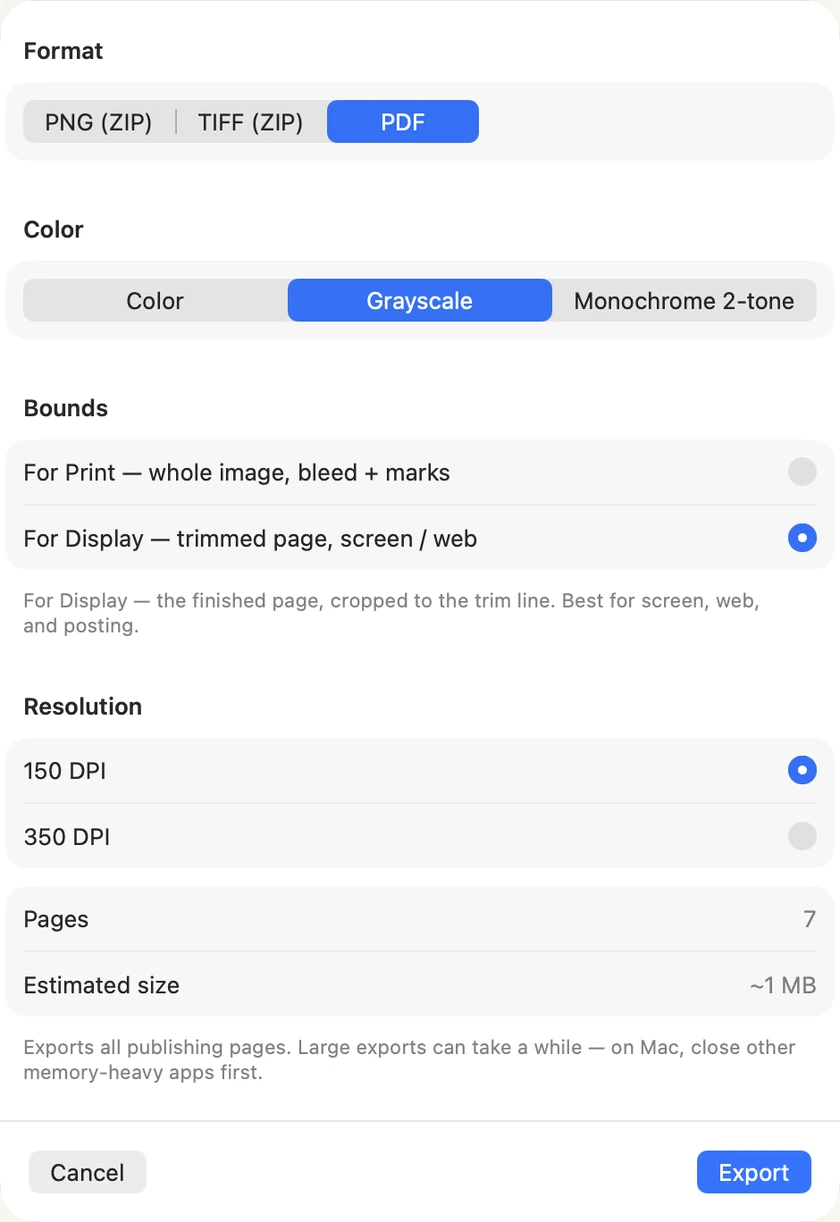
Four choices, top to bottom:
- Format — PDF is one file with every page, the easiest to send to someone. PNG (ZIP) and TIFF (ZIP) give one picture per page, packed together.
- Color — Grayscale suits most manga. Monochrome 2-tone is pure black and white; some printers ask for it. Color keeps your colours.
- Bounds — For Display is the finished page, cut at the trim line: choose this for a screen, the web, or posting. For Print keeps the bleed and adds printer's marks.
- Resolution — 150 DPI is enough for this exercise. For print, use the resolution your printer asks for.
To show your pages to a friend: PDF, Grayscale, For Display, 150 DPI.
Choose Export, then say where to save the file.
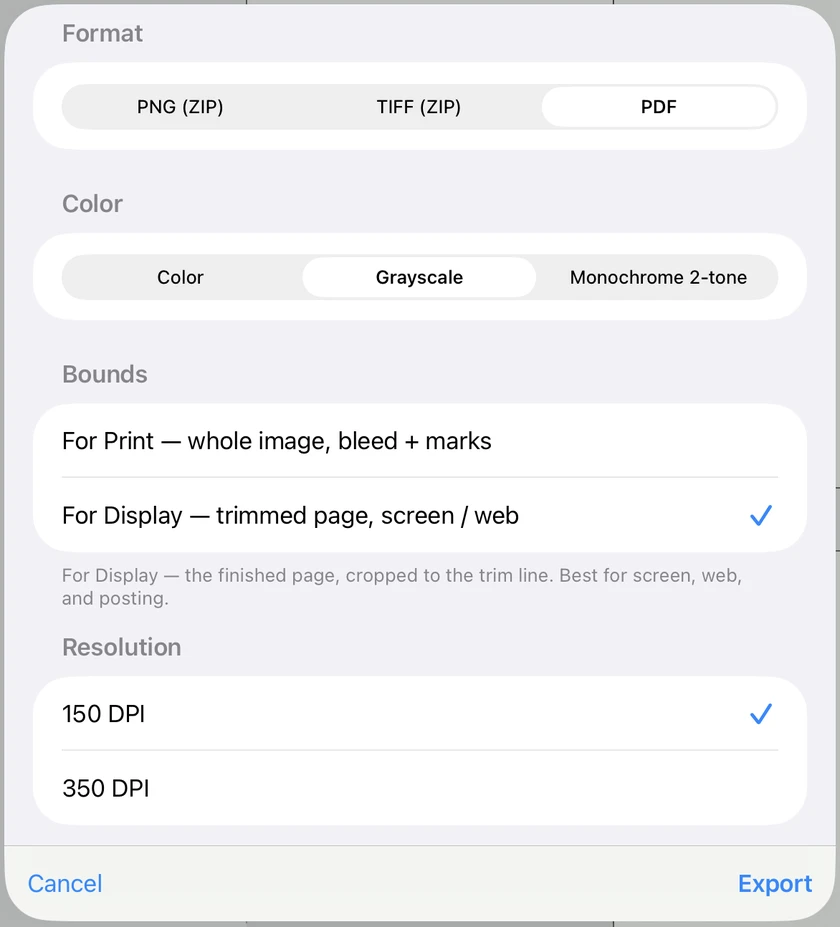
On iPad, the export button is in the toolbar of the page list: the square with an arrow pointing up. The sheet has the same four choices. Cancel closes it and nothing else happens.
When the export is ready, iPad shows its share sheet. Choose Save to Files to keep the file, or send it straight to another app.
2. Export one page
Open the page and choose File ▸ Export Current Page… (⌘⇧E). Or, in the page list, right-click a page and choose Export Page….
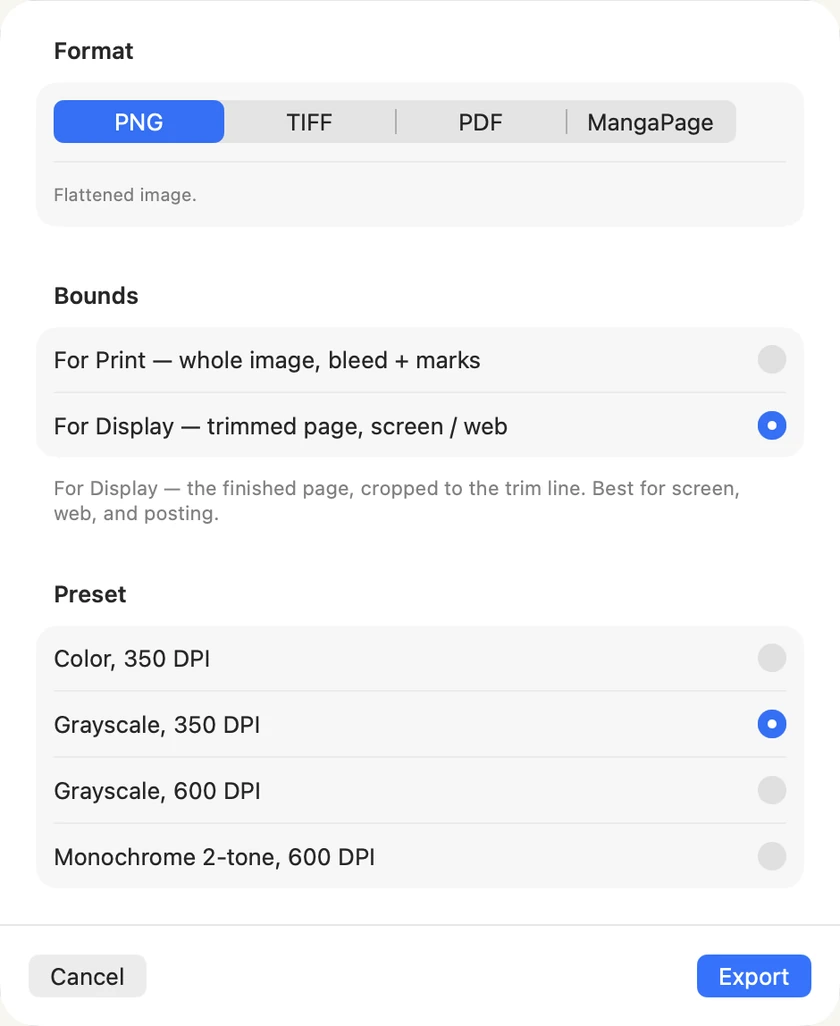
The choices are the same, with two differences. Colour and resolution come as ready-made pairs. And there is a fourth format, MangaPage: not a picture but the page itself, still editable, to move into another document or send to another person.
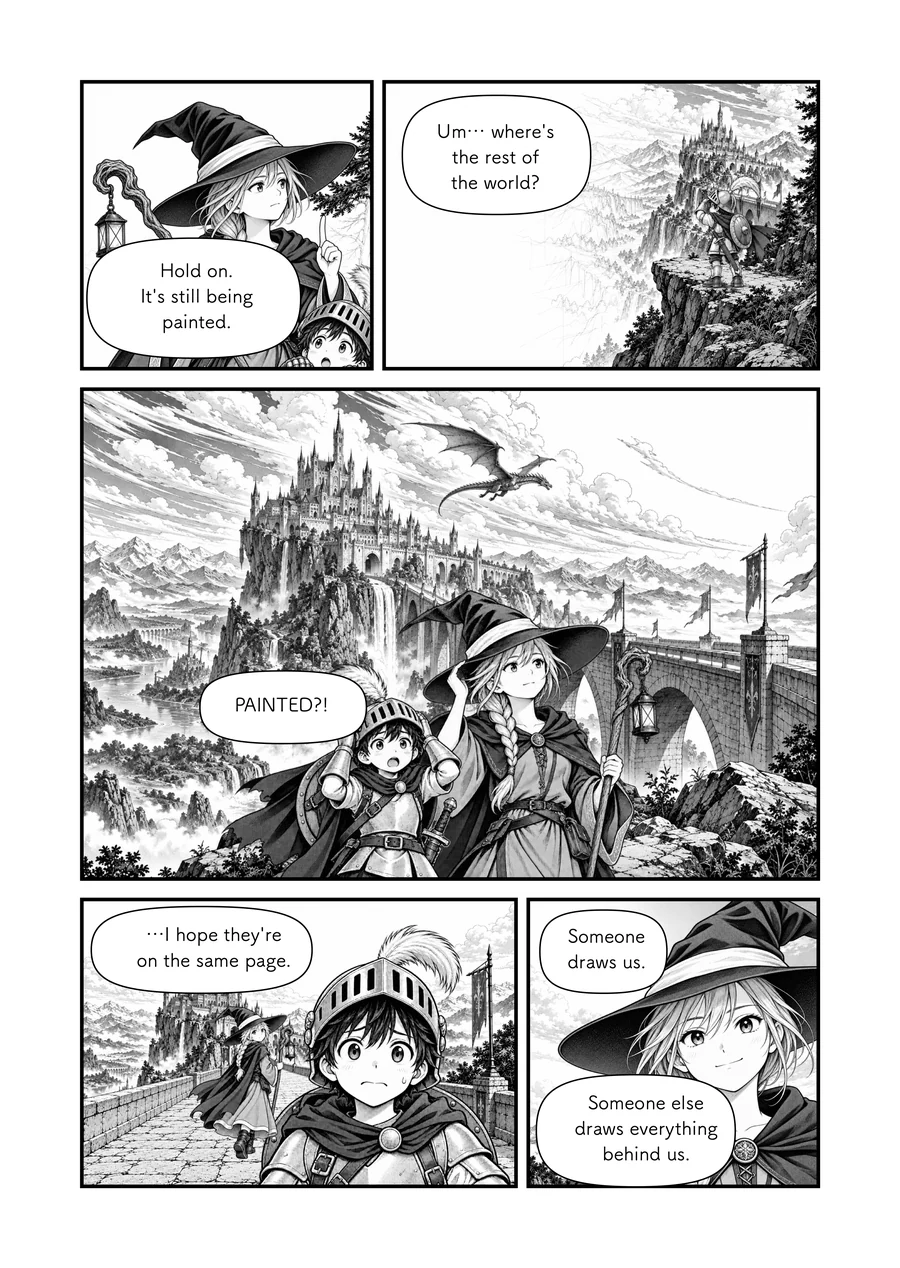
Choose Export and say where to save it. With the display setting, what comes out is the page alone, cut at the trim line, with none of the grid or guides you see while drawing:
3. If you do not have MangaLoft Plus yet
When you choose to export without a subscription, MangaLoft shows what MangaLoft Plus includes and its plans, before any export options. Maybe later closes it, and nothing is lost: your document stays as it is.
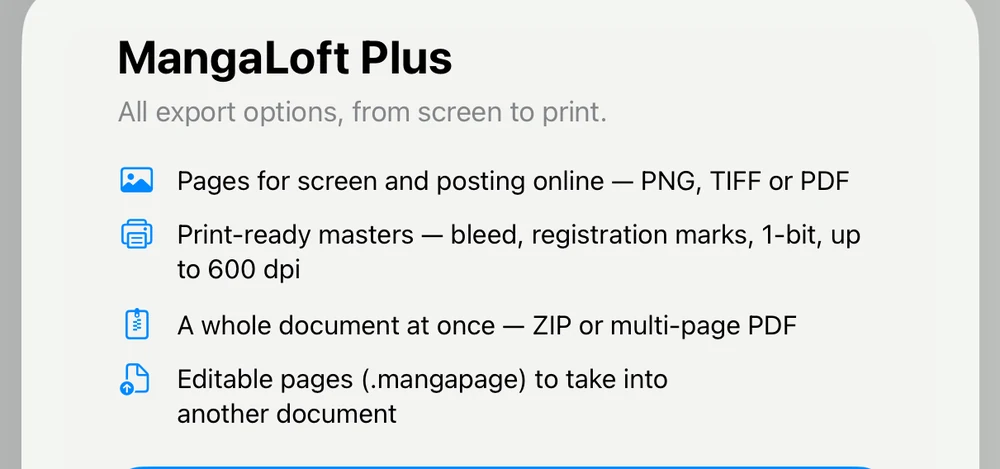
MangaLoft Plus is one subscription, for one year or three months, and it covers every export: screen or print, one page or the whole manga. Drawing and editing are free, with or without it. If a subscription ends, only exporting stops; your documents stay yours.
4. See or change your subscription
On Mac, MangaLoft ▸ Settings… (⌘,) shows your plan and when it renews, with Manage Subscription and Restore Purchases. On iPad, it is behind the gear in the document browser. Use Restore Purchases if you subscribed on another device and this one does not know yet.