Workbench and Continue Elsewhere
Work on one panel alone, or carry it to another device.
What the Workbench is for
A manga page is big, and one panel on it is small. The Workbench takes one panel off the page and lets you work on it alone, filling the window. When you are done you put it back.
Open a panel in the Workbench
Choose the frame tool, the last one in the strip, and click inside the panel. The panel is selected, and Open in Workbench appears at the top of the right side. Press it.
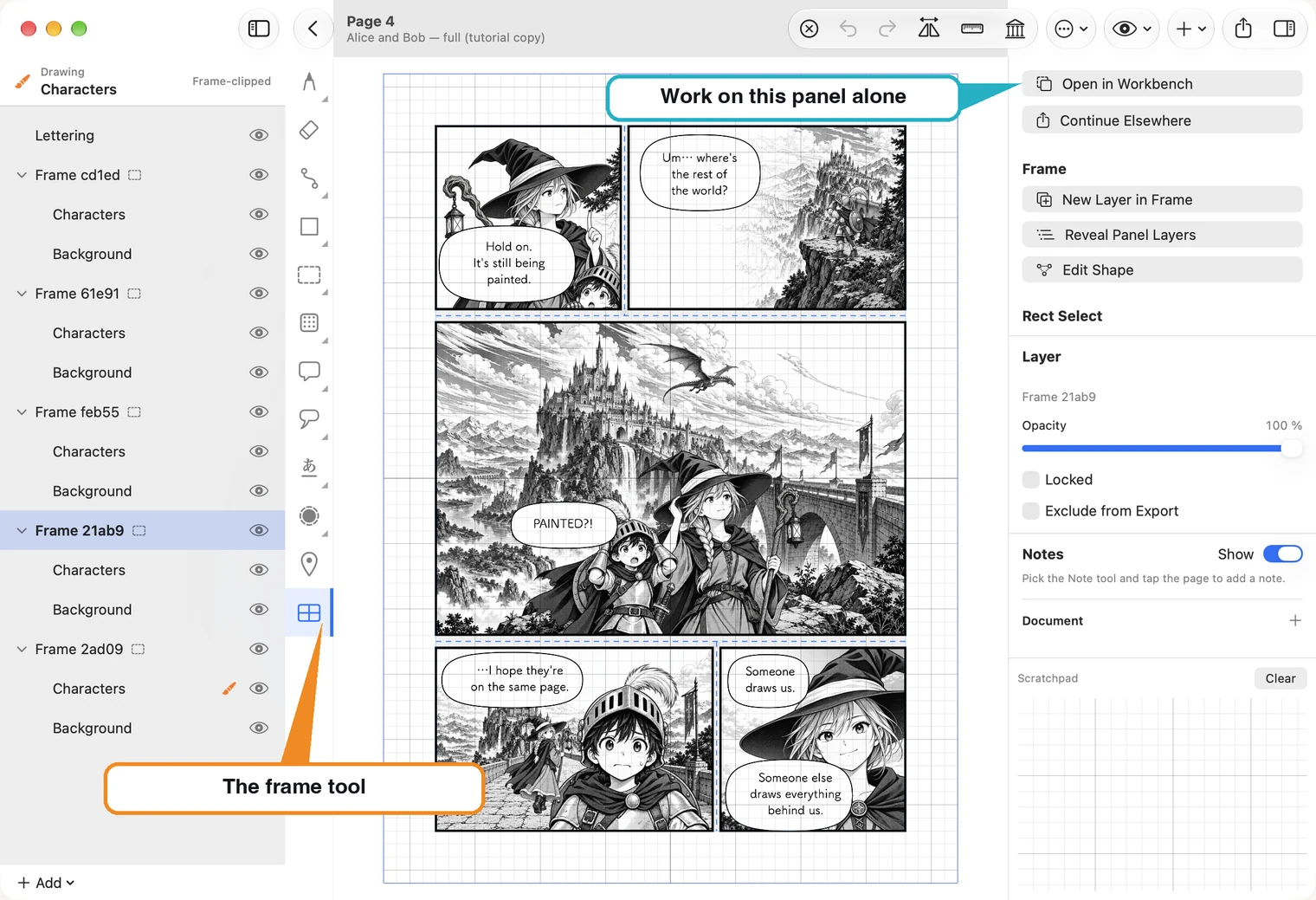
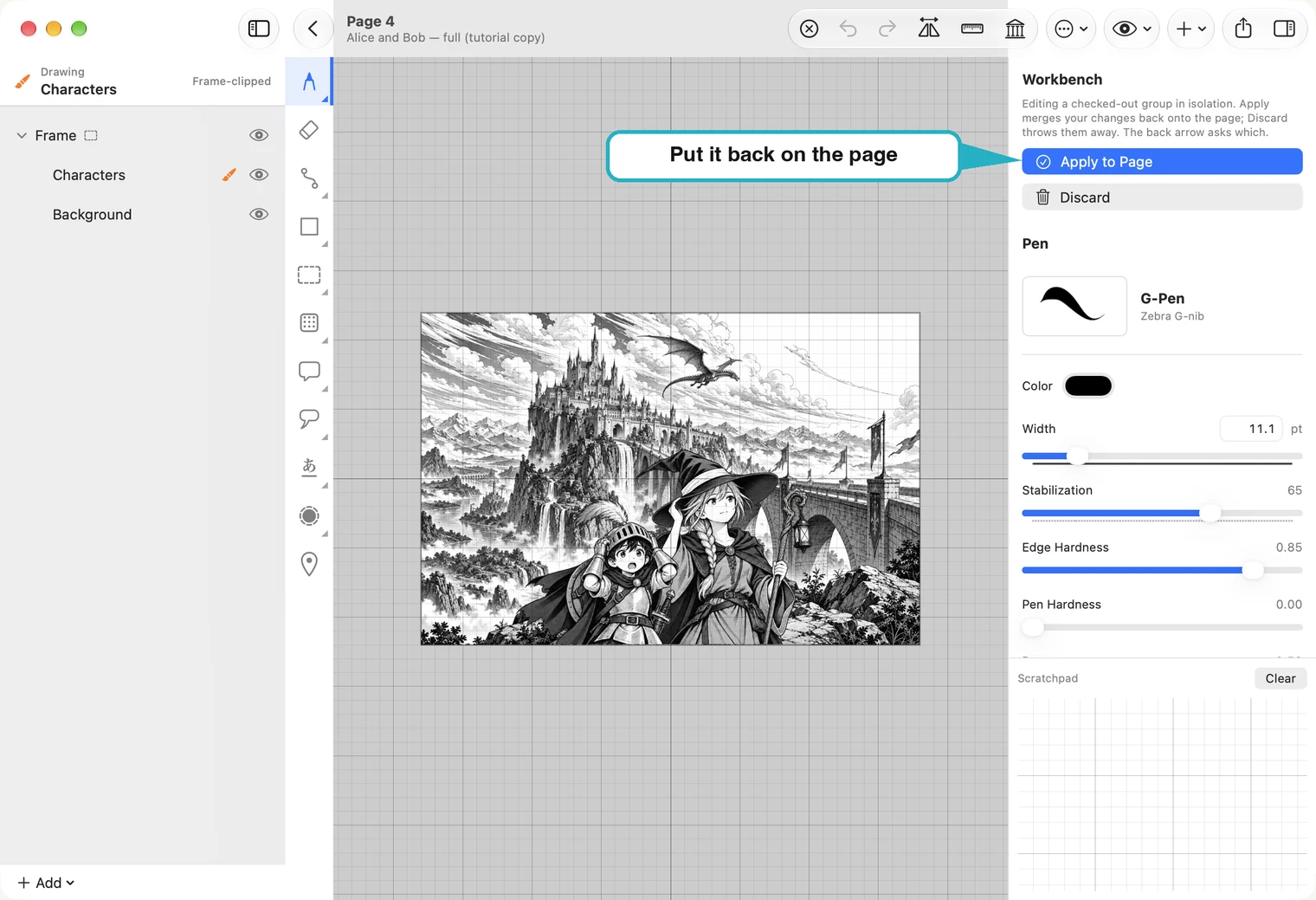
The panel opens by itself. The tools are the same; the layer list shows only this panel's layers. Anything on a layer outside the panel, such as lettering that sits over the whole page, stays behind on the page.
Put it back, or throw the changes away
- Apply to Page puts your changes onto the page.
- Discard throws them away; the page stays as it was.
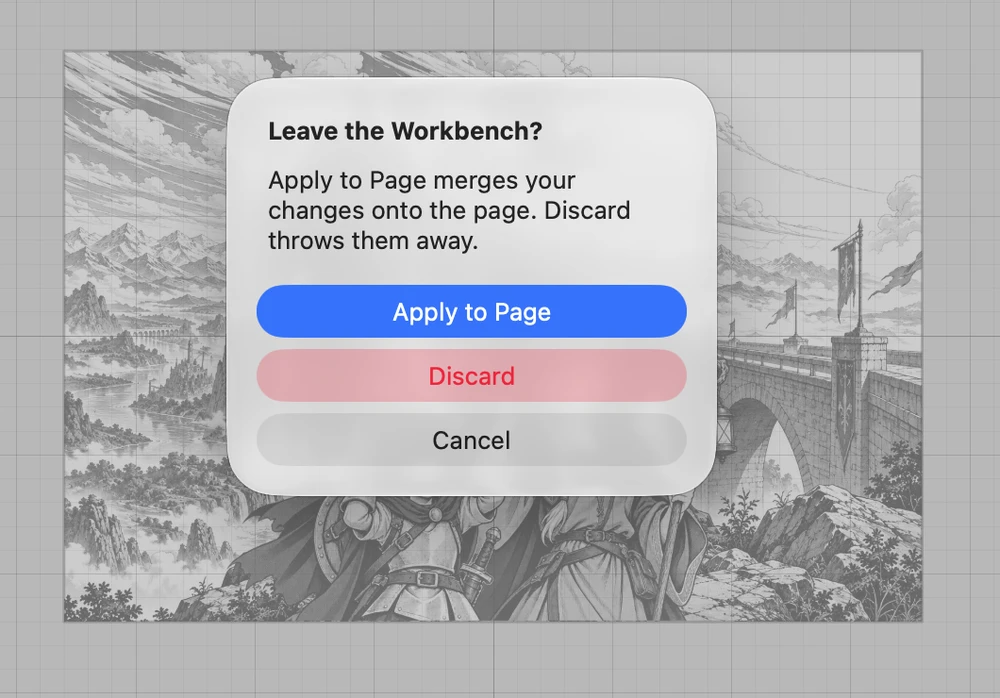
The back arrow asks which of the two you want, so you cannot leave by accident.
While a panel is in the Workbench, it is locked on the page: you cannot draw on it there, so the two never disagree.
Continue Elsewhere: carry a panel to your other device
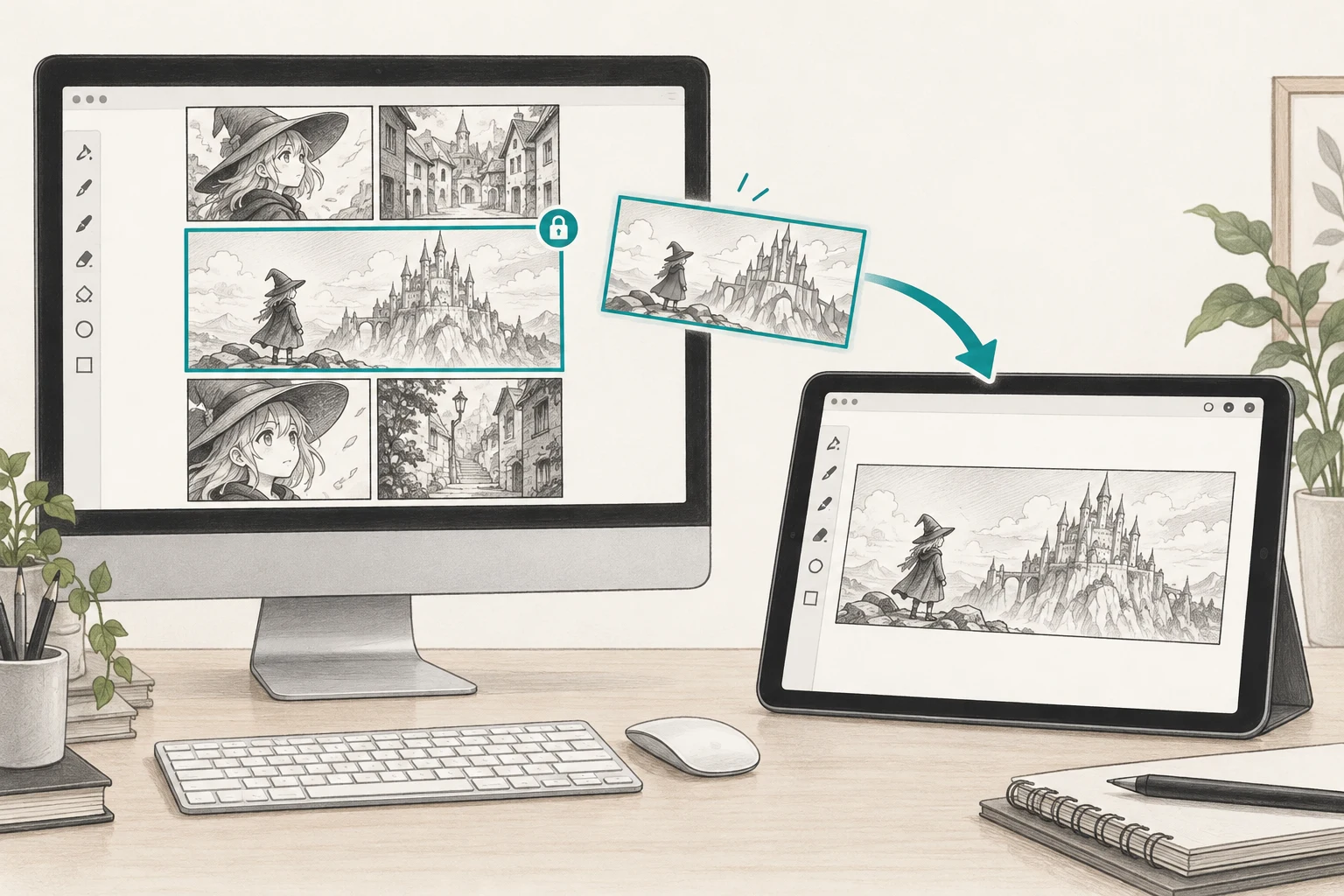
Lay out a page on your Mac, then ink one panel with Apple Pencil on your iPad. Continue Elsewhere carries that panel over iCloud; Send Back brings your edits home. You can go from iPad to Mac, too.
Here is the journey, illustrated. One panel travels; the rest of the page stays where it is. The three pictures are drawings of the idea, not the app's screen: the buttons are where the steps say.
1. On your Mac: send one panel
Select the panel with the frame tool, then press Continue Elsewhere, below Open in Workbench. Wait for Sent — ready on your other device.
2. On your iPad: pick it up and draw
Open MangaLoft on your iPad. When the waiting part appears, tap Open. The panel opens by itself in the Workbench, ready to draw on.
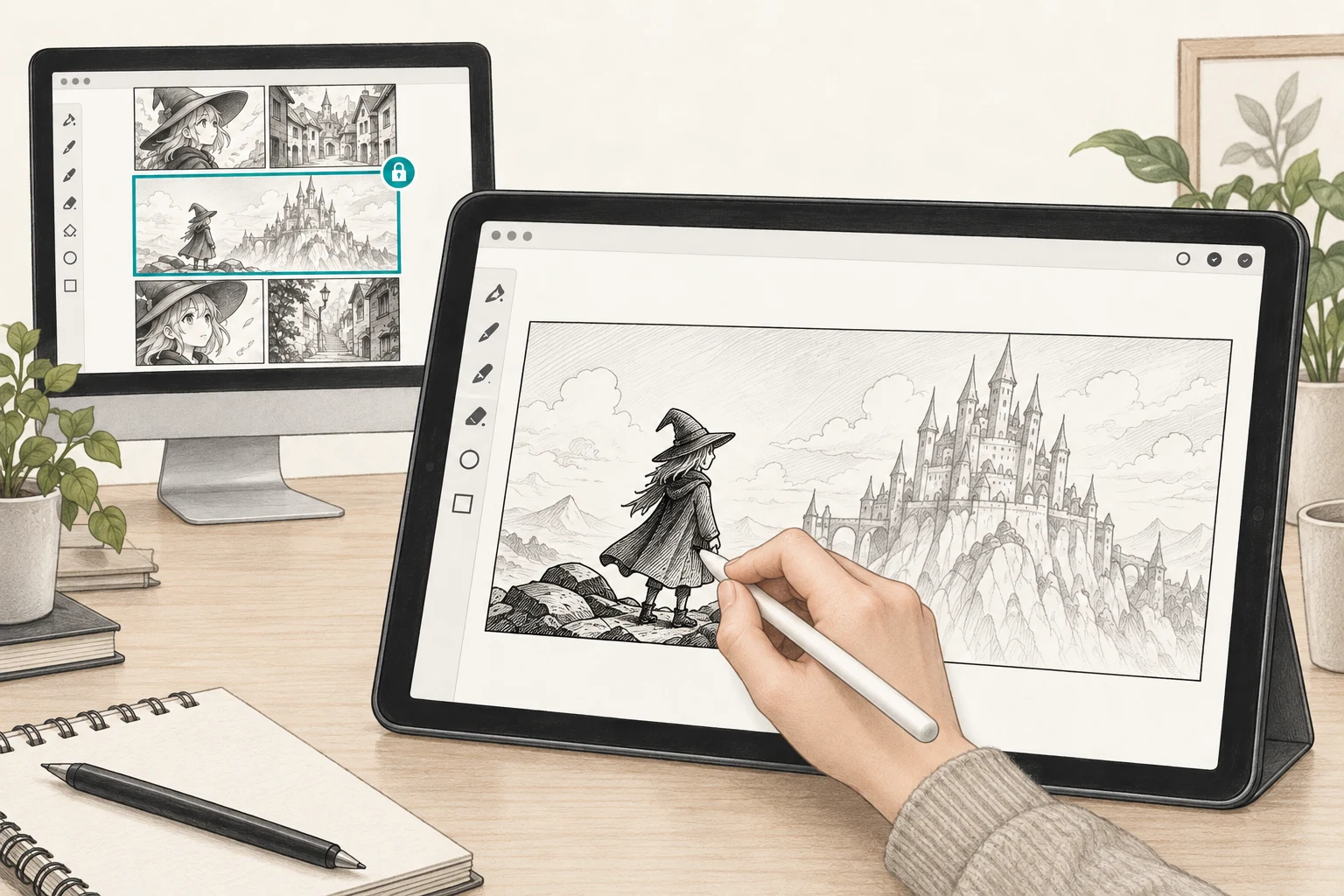
3. Send it back: the edits go home
When you are done, choose Send Back on the iPad. Then open the original page on your Mac. The returned edits are applied automatically.
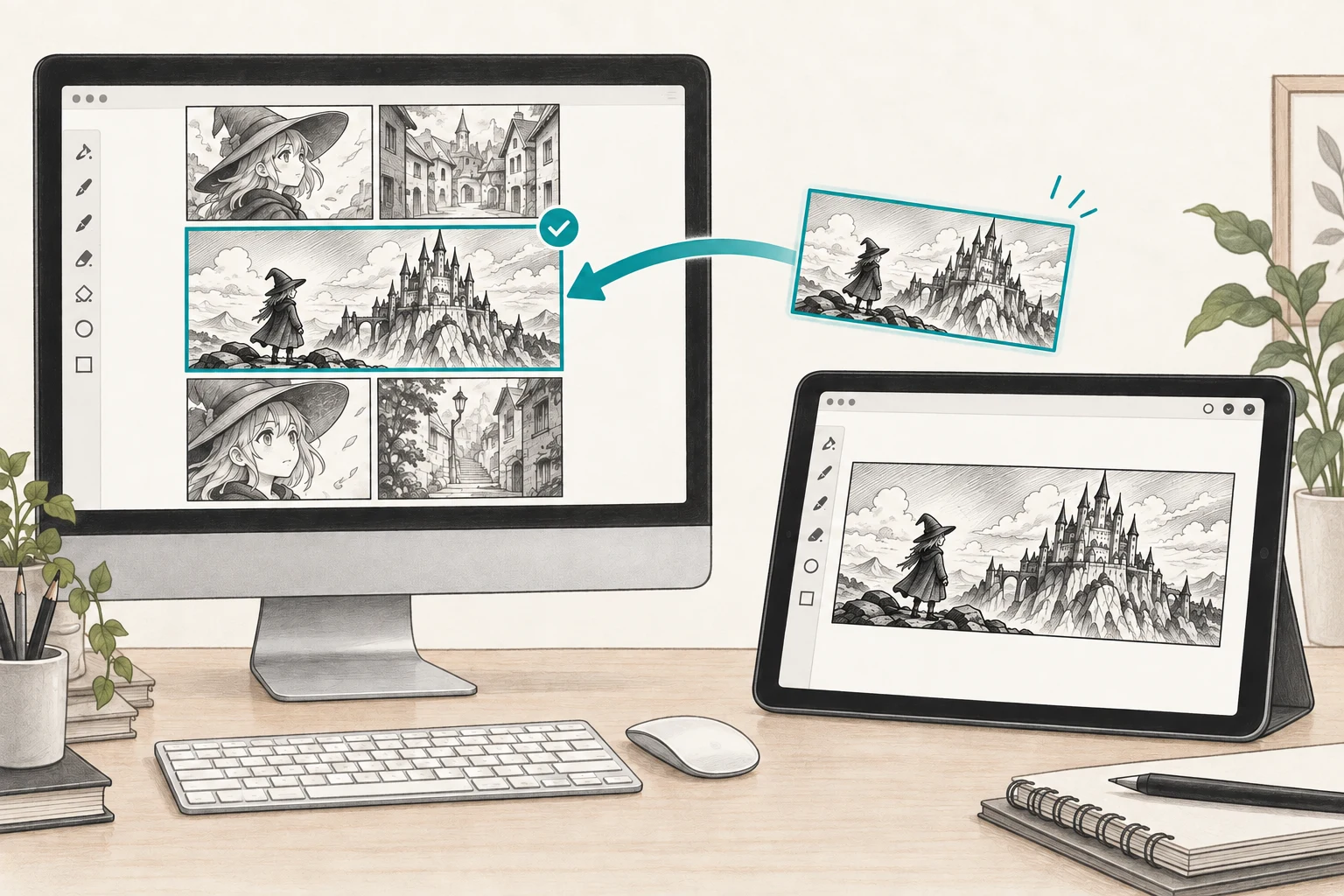
- When a panel is waiting for you, MangaLoft tells you as it opens. On Mac, Window ▸ Received Parts… lists them at any time; on iPad, Open a Received Part in the document browser.
- Parts arrive only while MangaLoft is open.
- Both devices need the same Apple Account, signed in to iCloud.