Layers
The layer panel and what each mark means.
What a layer is
A layer is a clear sheet laid over the page. A page is a stack of them, and you draw on one at a time. Keeping things on separate layers — the characters, the background, the lettering — lets you change one without touching the others.
The layer list
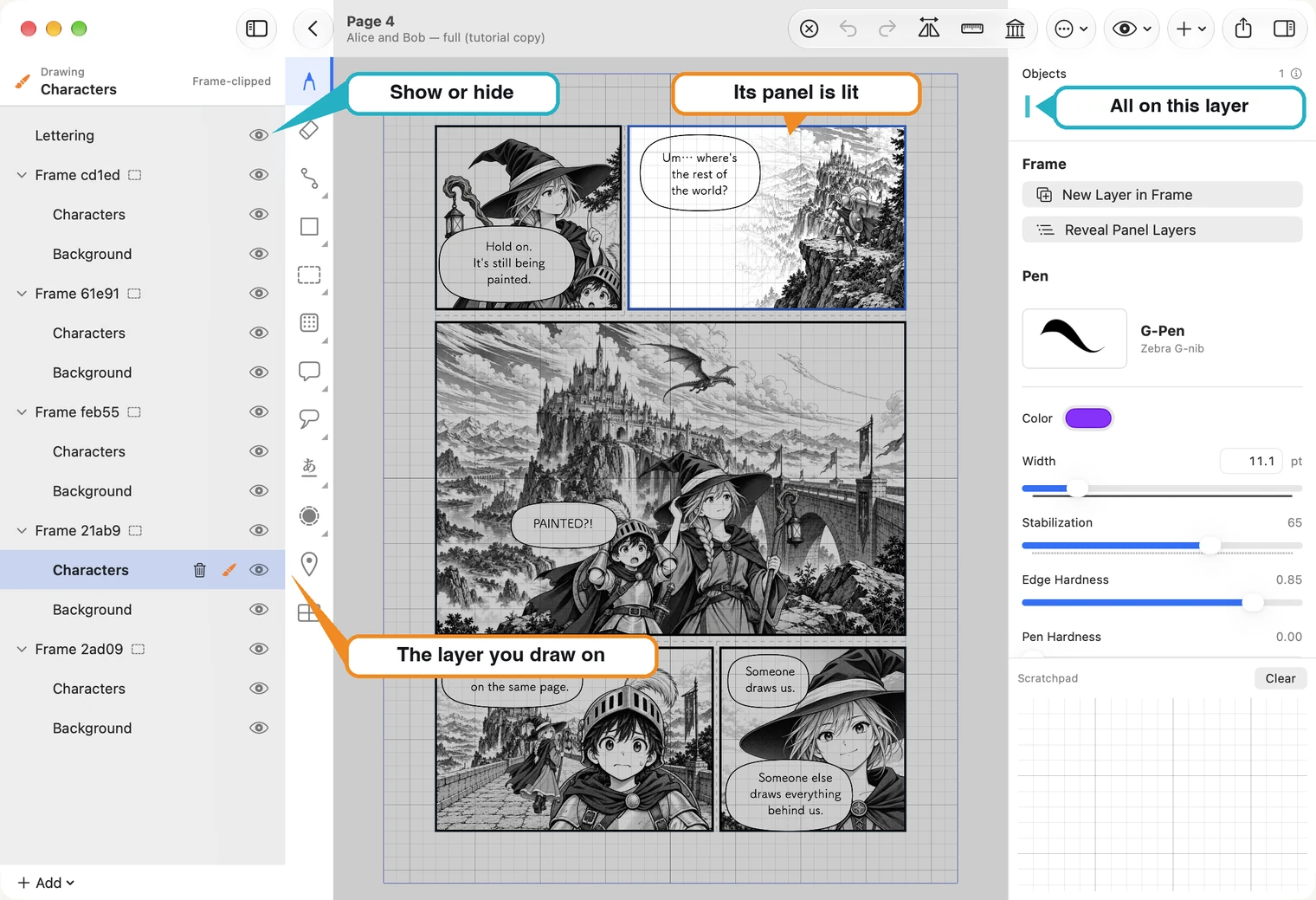
The list on the left is the page from front to back: what is higher in the list is drawn in front.
- Click a layer to make it the one you draw on. Its row is highlighted and carries a small brush.
- A Frame is a panel. The layers under it belong to that panel and are cut off at its border. When you pick one of them, the panel is lit and the rest of the page goes grey.
- A layer outside the frames, like Lettering here, covers the whole page. Words usually go there, so a balloon can cross a panel border.
- The eye shows or hides a layer.
You can also pick a layer from the page: with the selection tool, click inside a panel, or on something you drew.
Add a layer
+ Add, under the list, offers three things: Add Layer, Add Layer Group to keep several layers together, and Add Page Layer — outside frames for a layer that covers the whole page. With a panel selected, New Layer in Frame on the right adds a layer inside that panel.
Rename, duplicate, lock, delete
Right-click a layer for its menu (on iPad, touch and hold).
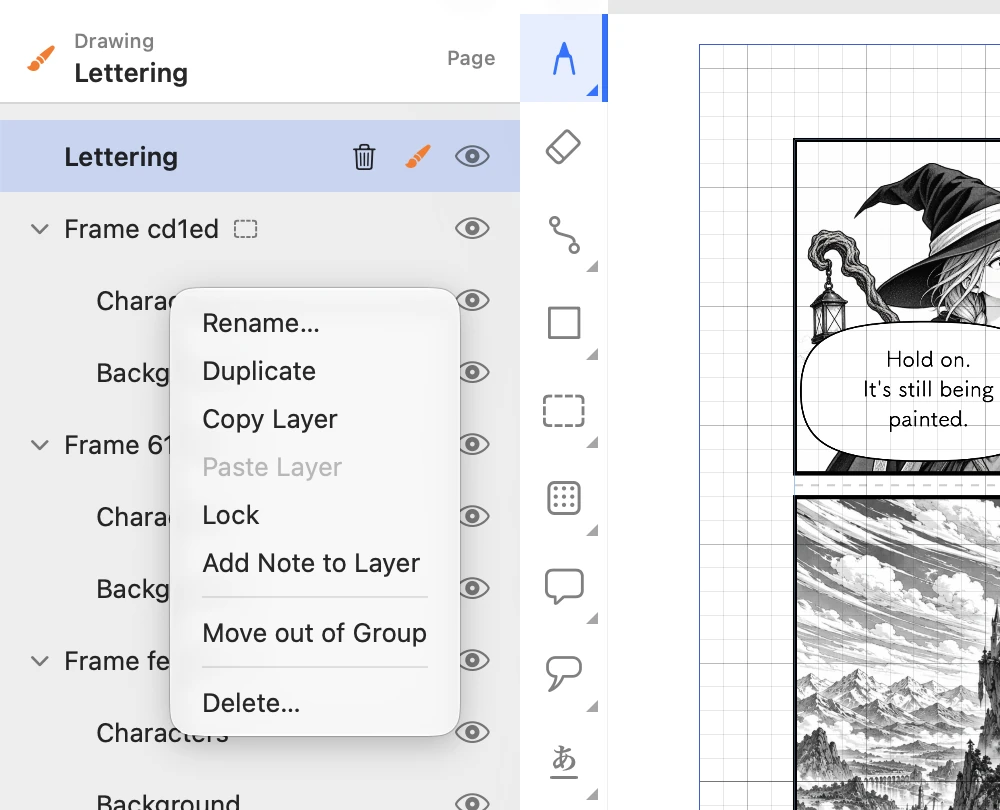
- Rename… — give the layer a name you will recognise. New layers start with a short code.
- Duplicate, Copy Layer, Paste Layer — a copy here, or in another open document.
- Lock — nothing on the layer can be changed until you unlock it.
- Delete… — removes the layer and everything on it. The trash can on the selected row does the same.
Change the order
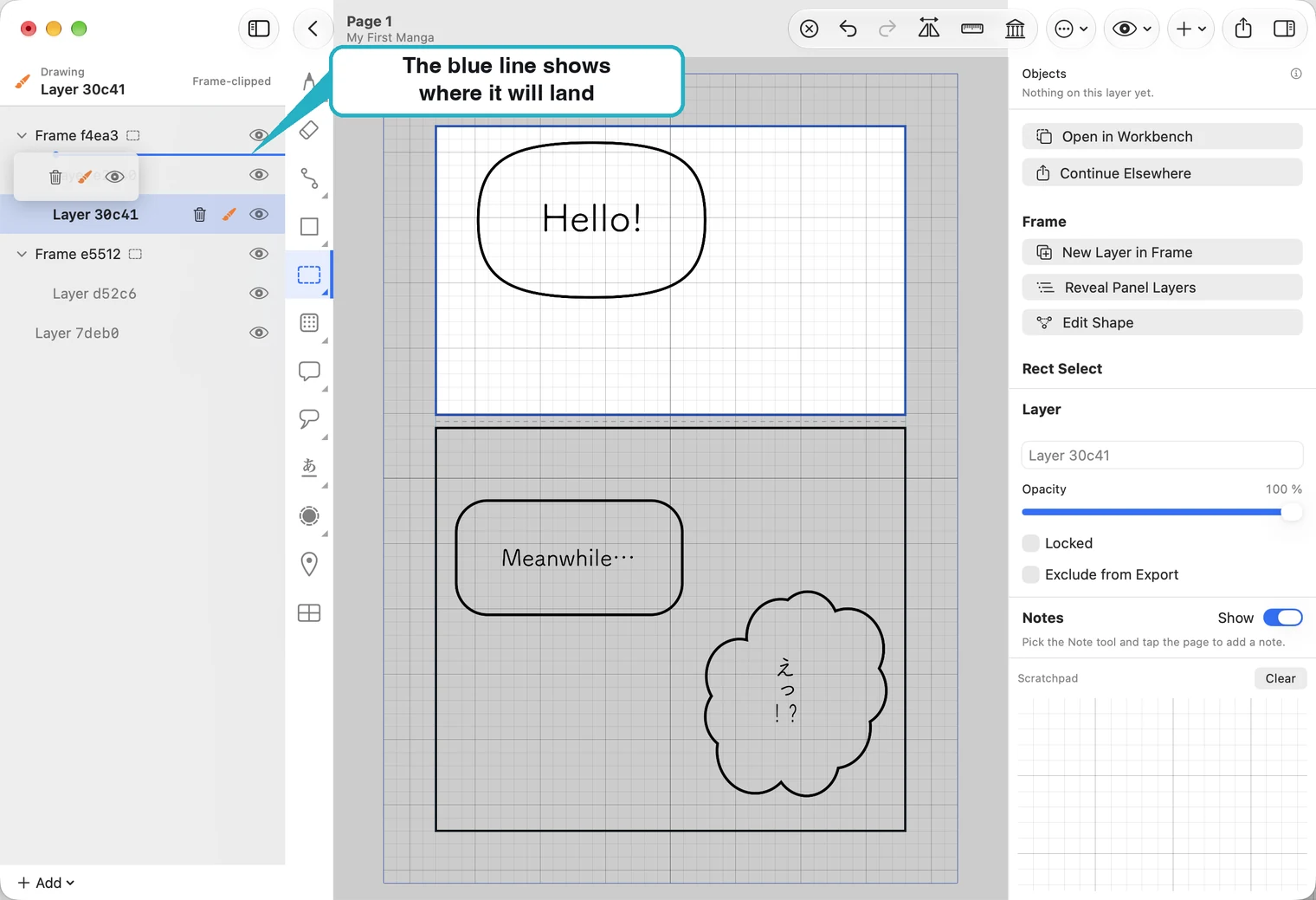
Drag a layer up or down the list. A blue line shows where it will land. Moving a layer up brings it in front of the ones below.
On iPad, tap a layer to select it. The selected row shows a … button: tap it for the same menu (Rename, Duplicate, Copy Layer, Paste Layer, Lock, Add Note to Layer, Delete). Choose Rename… to rename the layer; a double-tap on the row does the same. To move a layer, touch and hold its row, then drag it up or down the list.
See everything on a layer
With a layer selected, the Objects strip at the top right shows everything on it, one coloured cell per thing, the frontmost on the left. Grey is a pen stroke, blue a path or shape, orange a balloon or tail, green text, purple a tone, teal a picture. Click a cell to select that thing. It is the way to reach something that is covered by something else.
Keep a layer out of the export
Select the layer and tick Exclude from Export on the right. The layer stays visible while you work, but is hidden in exported images and PDFs. Use it for sketches and notes to yourself. The editable MangaPage format keeps the layer data.
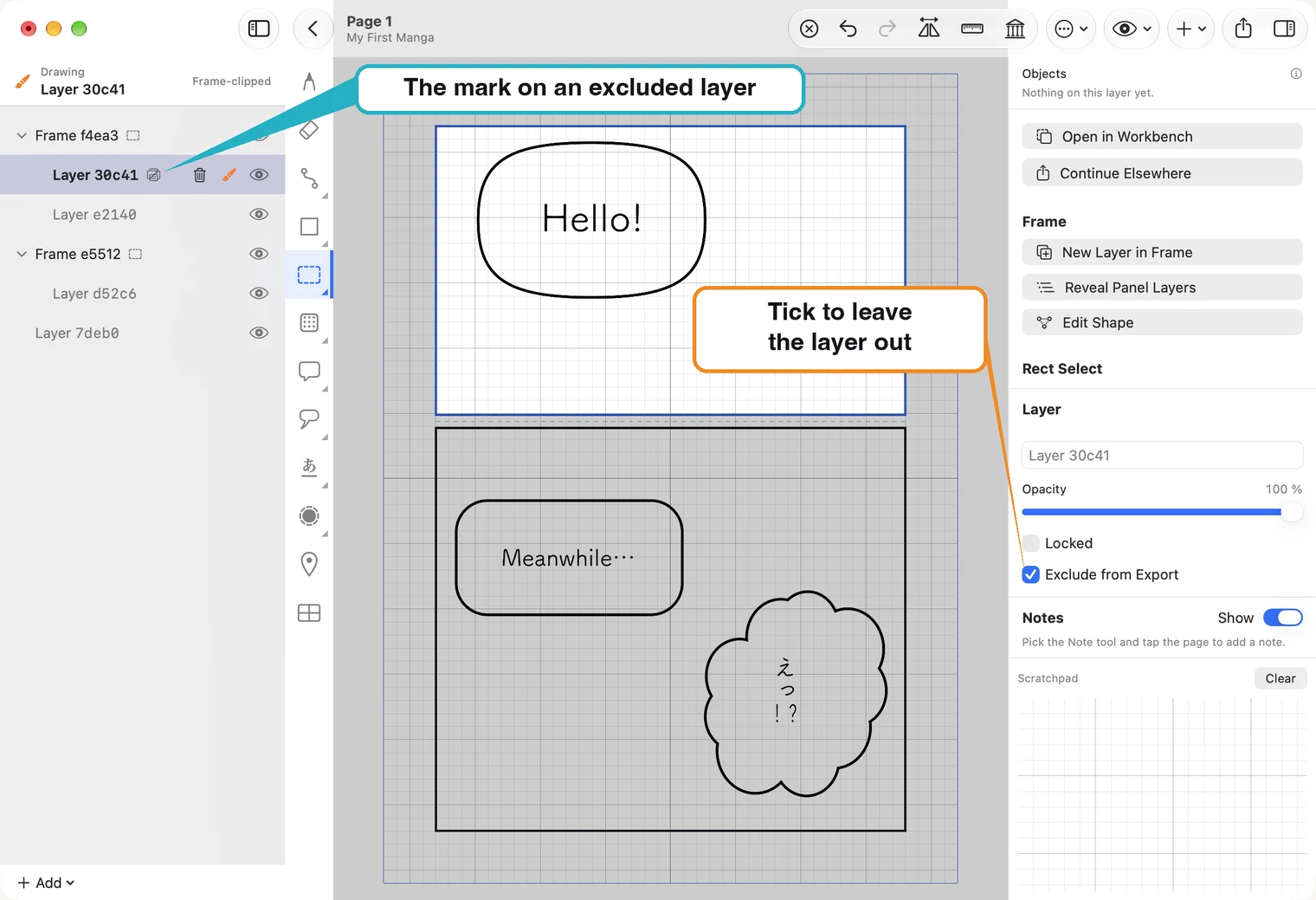
An excluded layer carries a small mark beside its name, so you can see at a glance what will be hidden in exported images and PDFs.
When nothing is selected
Drawing needs a layer. If the list says No active layer, a drawing tool answers “Select a layer first.” Click a layer in the list, or click the page with the selection tool. The ⊗ button in the toolbar steps back out, one level at a time.