The page list
Pages added, in order, and one opened.
1. What the page list shows
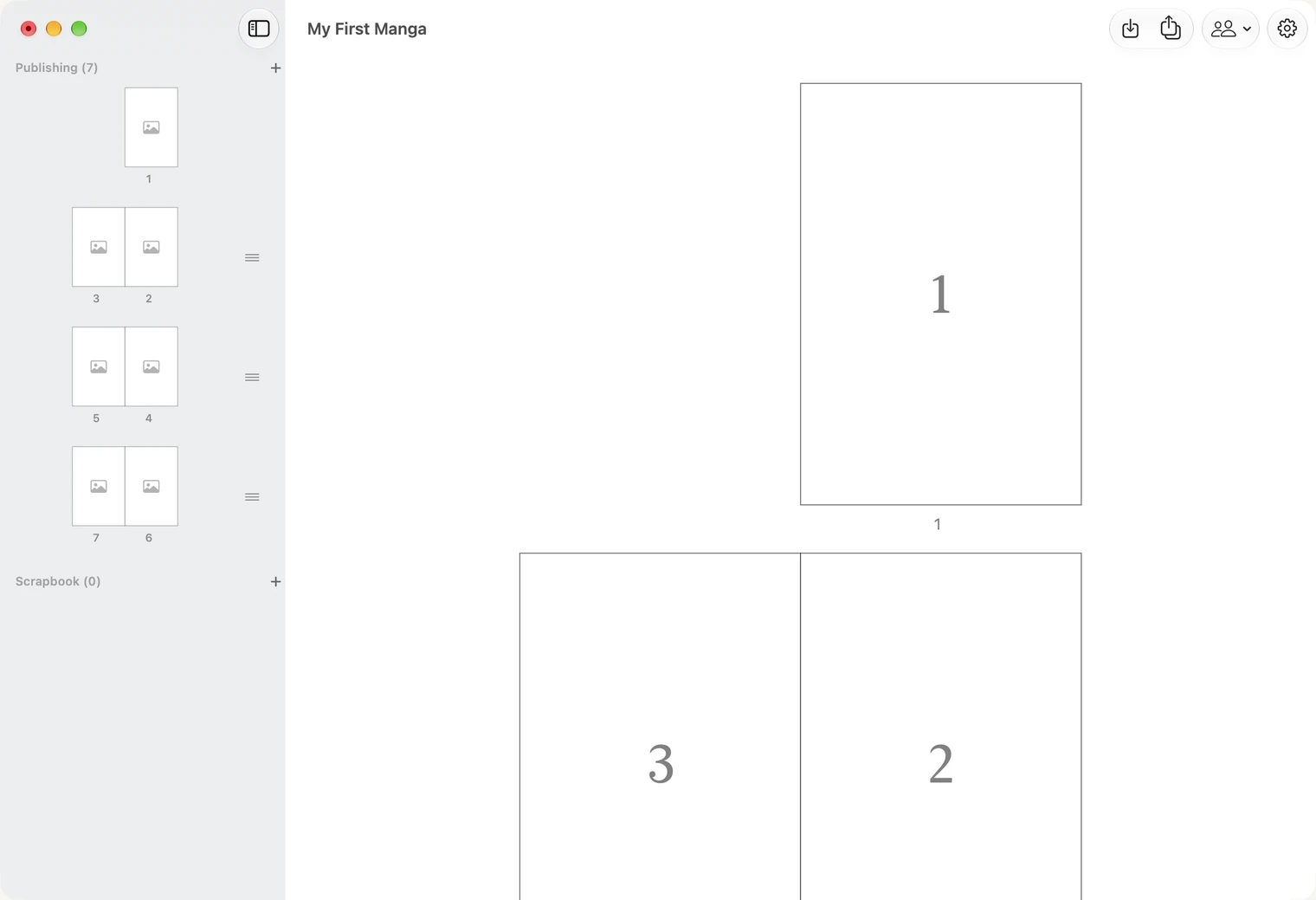
The page list is the first thing you see when a document opens. It shows your manga twice.
- On the right, the pages, large. This is where you open a page to draw.
- On the left, the same pages small, in pairs. Each pair is a spread: two pages that face each other when the book lies open. Page 1 sits alone, because it has no partner.
The left side is headed Publishing, with the number of pages. These are the pages of your book. Below it is the Scrapbook, a place for pages you want to keep but not print; you can leave it empty.
2. Add a page
Press the + beside Publishing. A new page is added at the end.
To add a page somewhere in the middle, right-click a page on the right and choose Insert Page Before or Insert Page After.
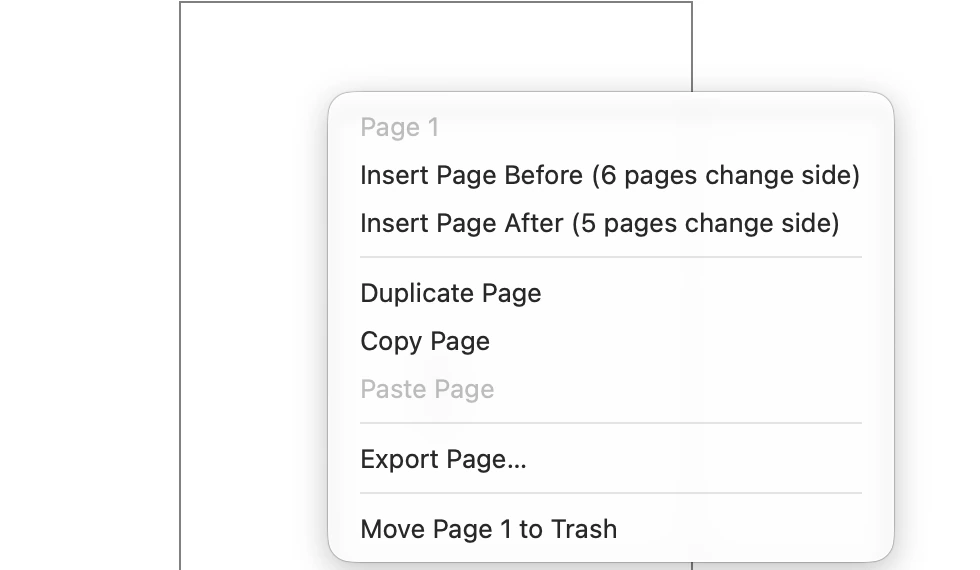
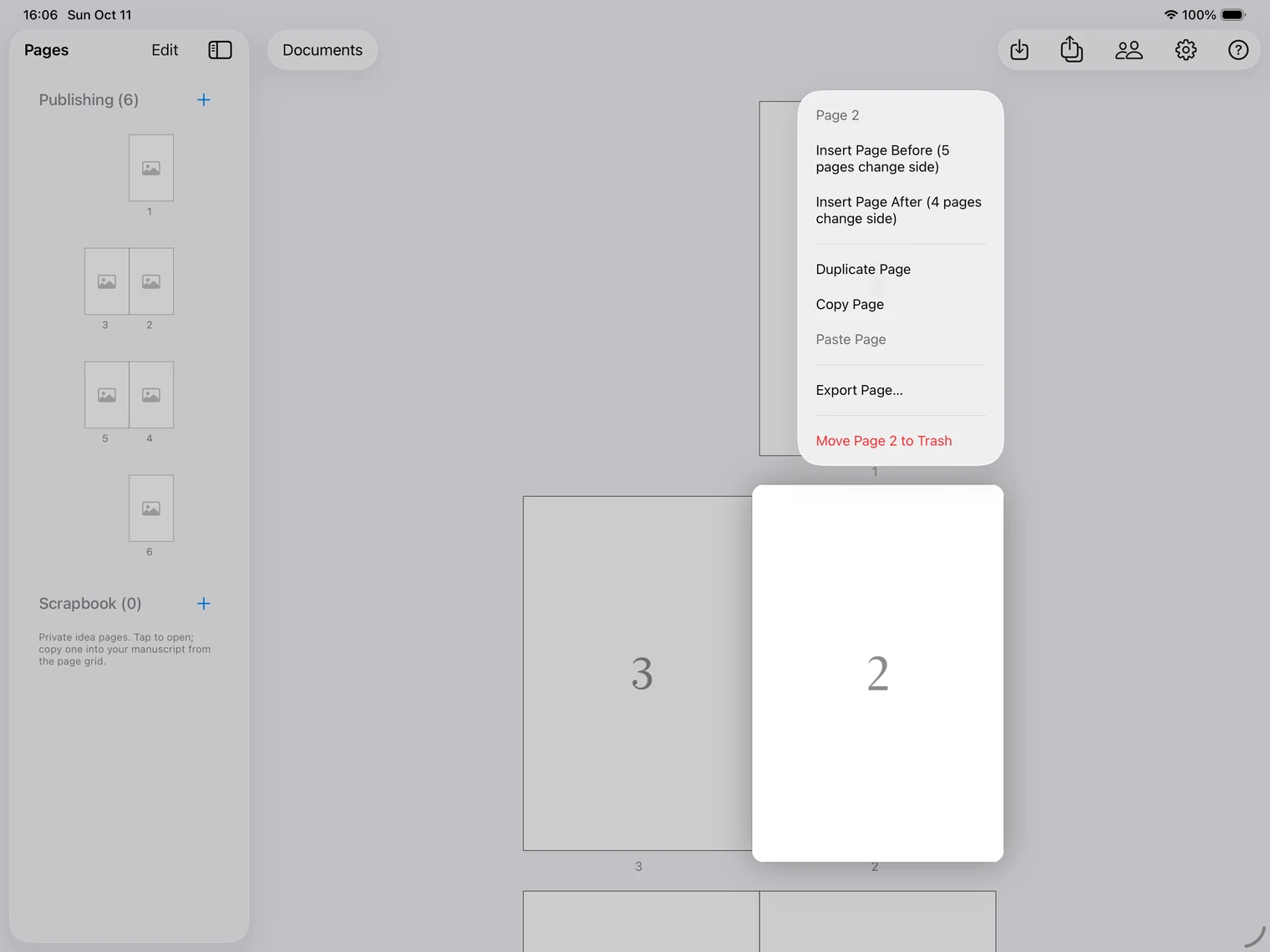
The menu warns you how many pages change side: inserting one page moves every later page from the left side of the book to the right, or the other way. More in Documents and pages.
On iPad, touch and hold a page to open the same menu.
3. Put pages in order
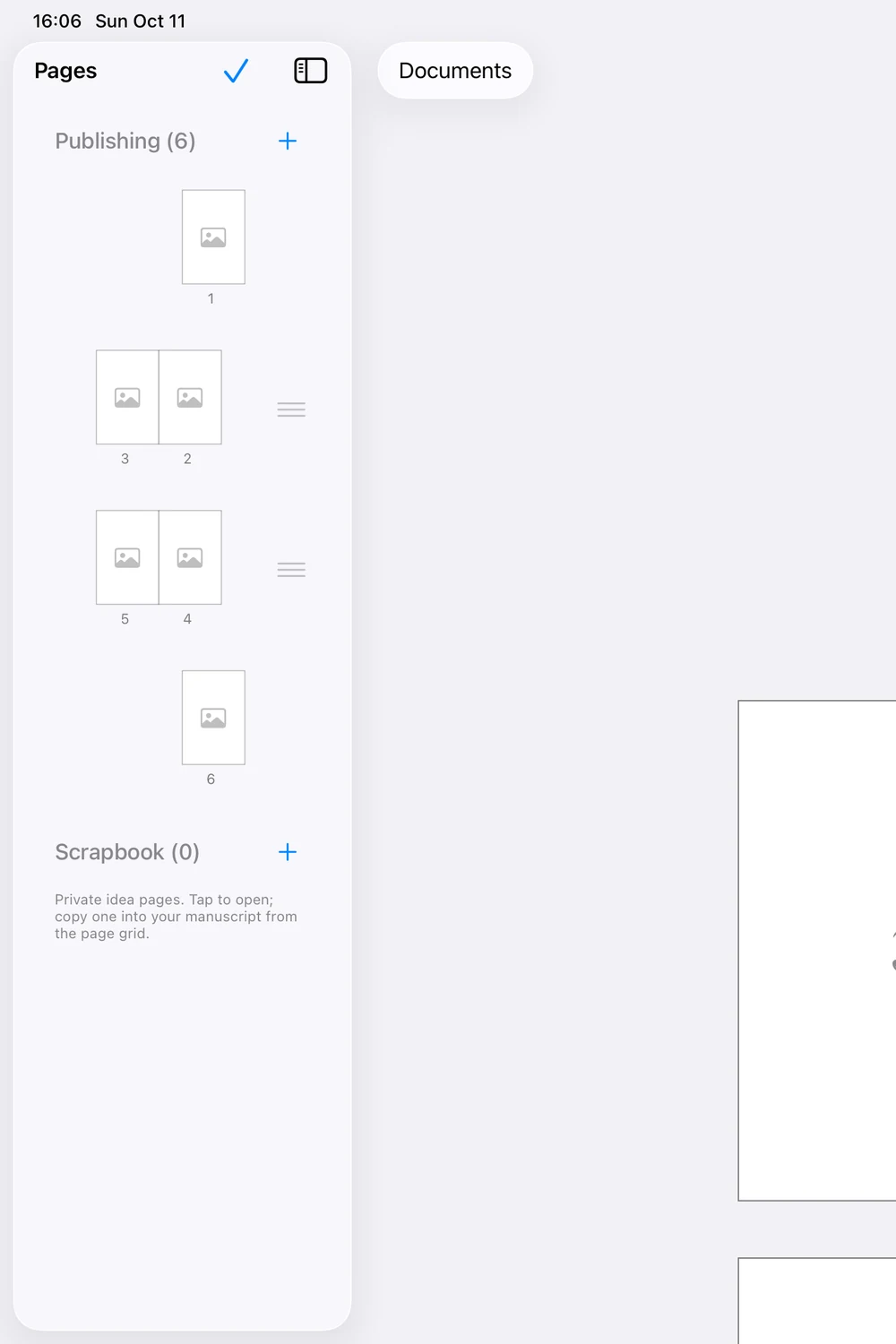
On the left, each pair has a small grip at its right edge. Drag the grip up or down to move the pair. The two pages move together, so facing pages never come apart.
On iPad, tap Edit at the top of the Pages column. The grips appear; drag a pair, then tap the check mark.
4. Remove a page
Right-click a page and choose Move Page 1 to Trash (the menu names the page you clicked). Nothing is destroyed yet: the page waits in the Trash, and you can put it back. More in Documents and pages.
5. Open a page
Double-click a page on the right. It opens in the editor, where you draw. The arrow at the top left of the editor brings you back to the page list.
On iPad, tap a page once.