Draw on the same page
Check out what you change, check it in, Update, and wrap up when the manuscript is done.
Two people can work on one page at the same time, as long as each holds a different layer. Here Alice draws the characters of a panel while Bob draws its background.
1. Check out a layer
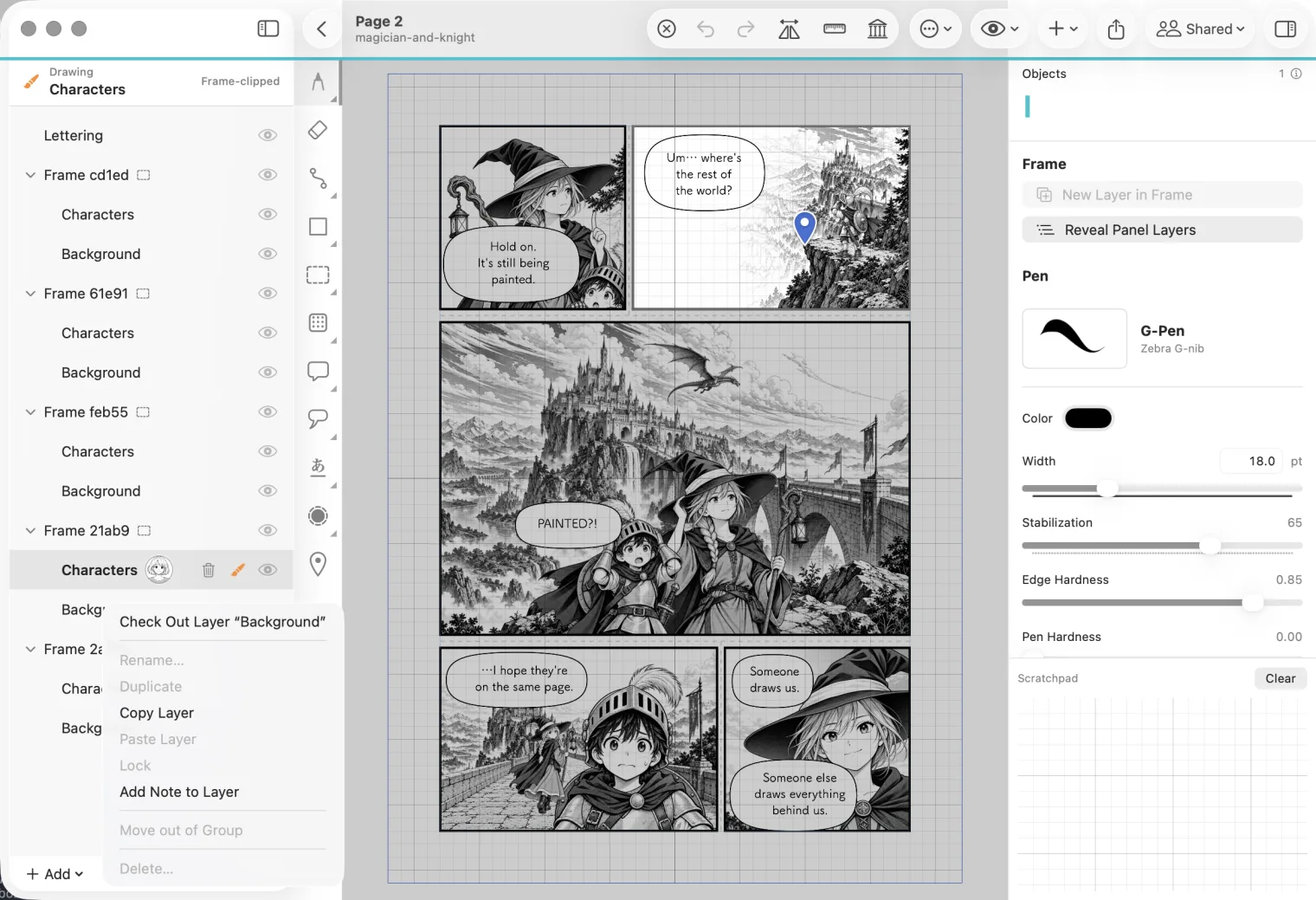
Open the page. In the layer list, right-click the layer you will draw on and choose Check Out Layer. The same commands are in the Shared menu at the top right.
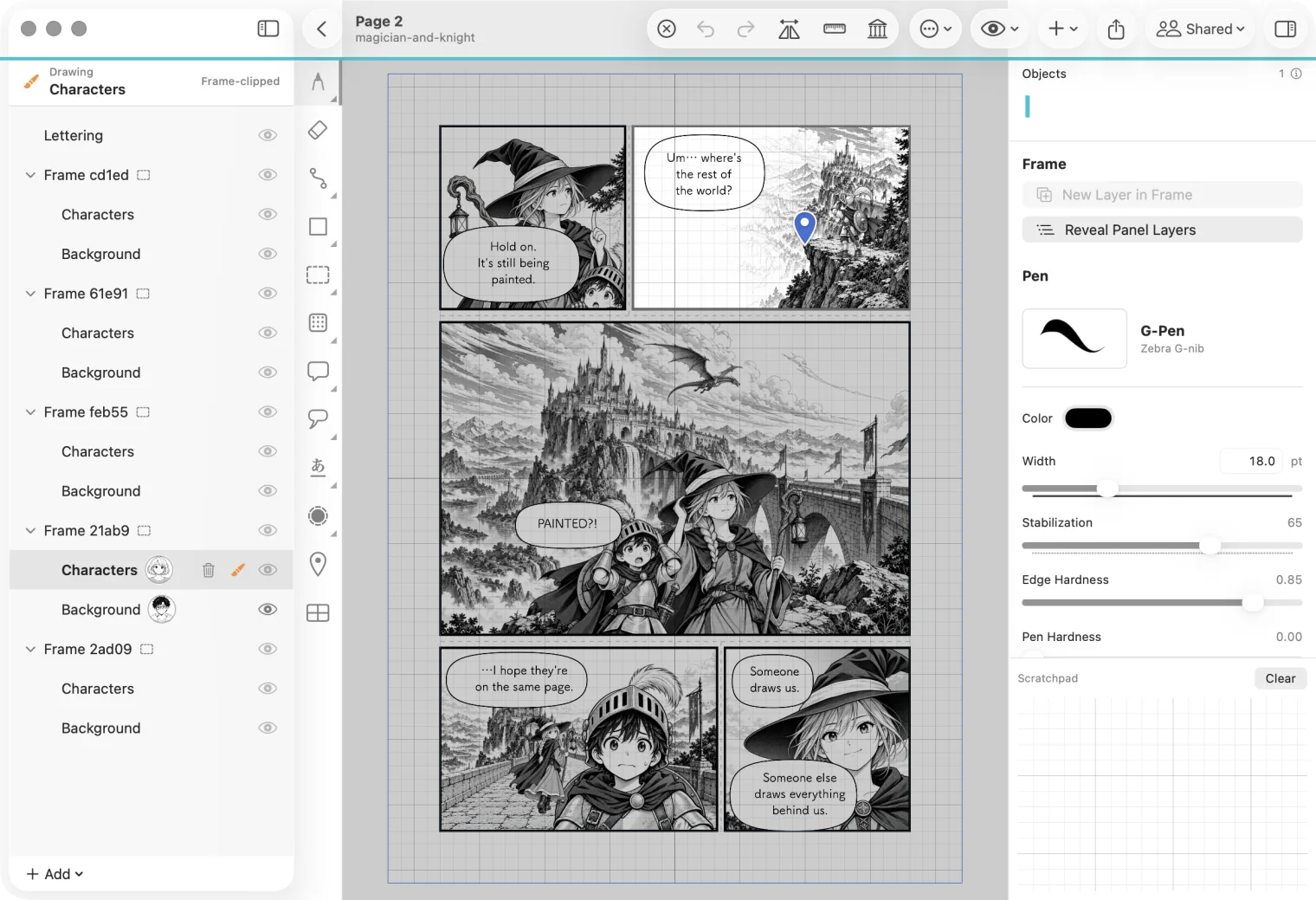
Your face appears on the layer. A face on a layer means that person holds it, and only they can change it.
2. Draw on it
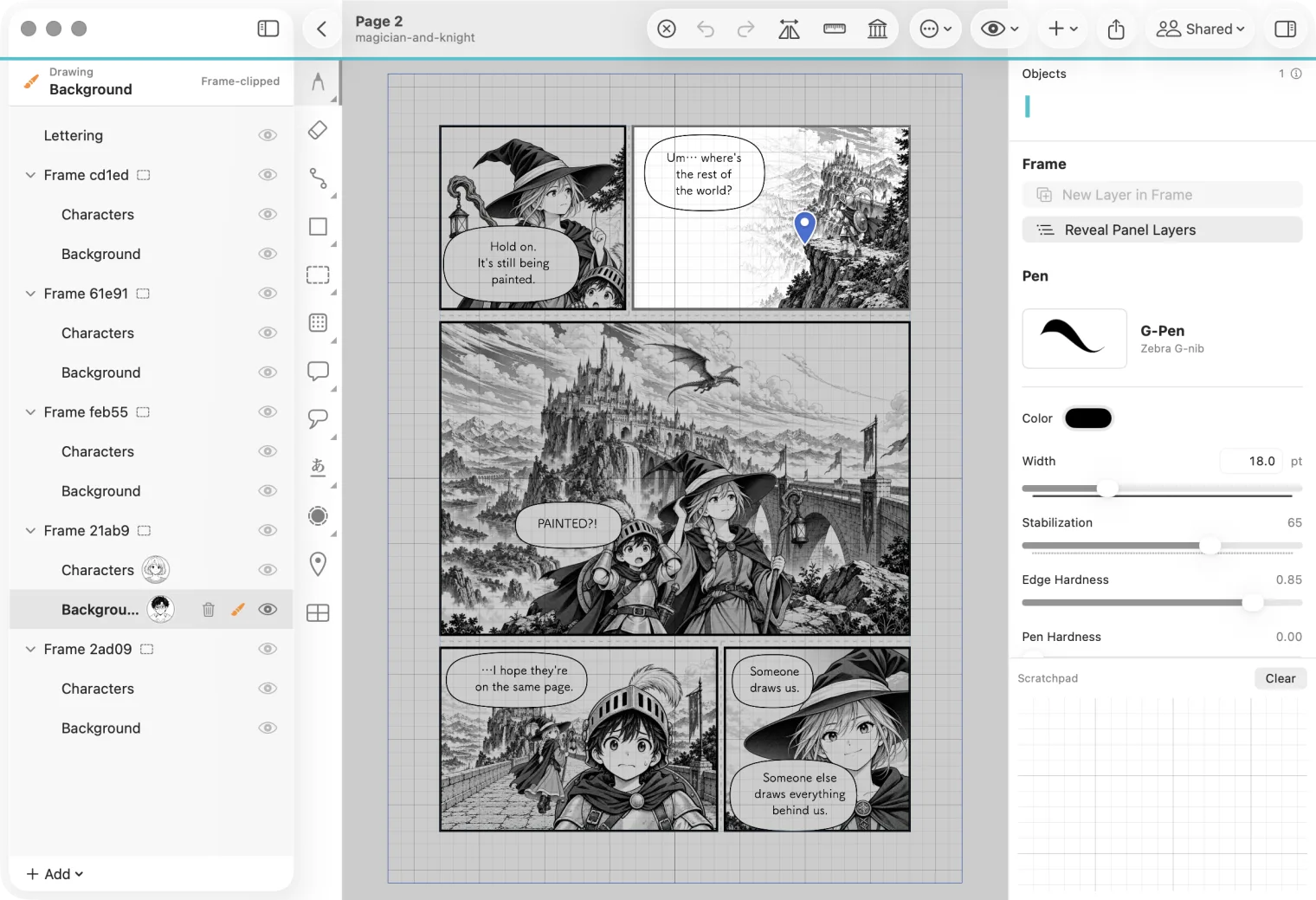
Click the layer you checked out, so the top of the layer list reads Drawing and that layer's name. Then draw as usual.
3. Check it in
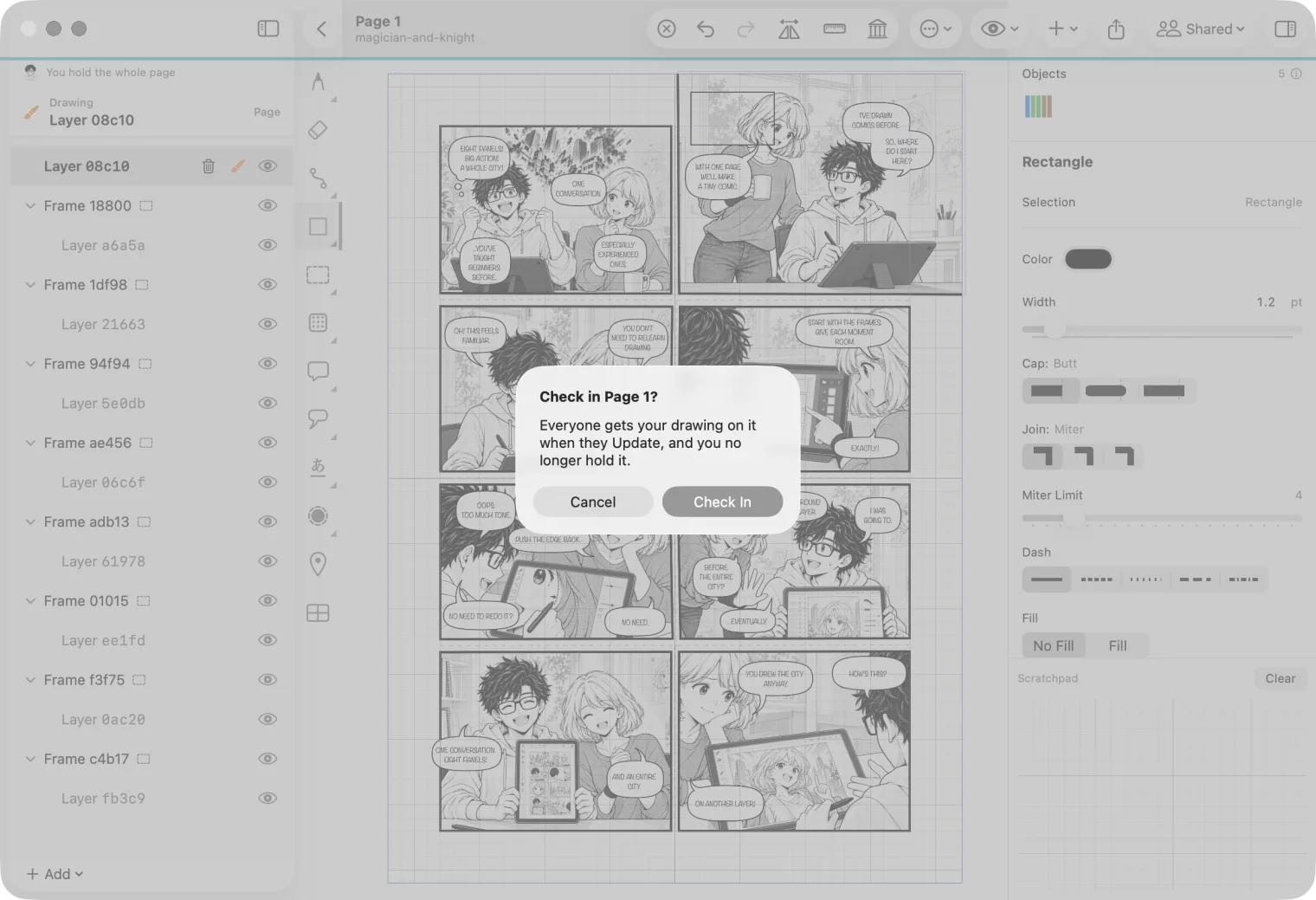
When you are done, right-click the layer and choose Check In Layer….
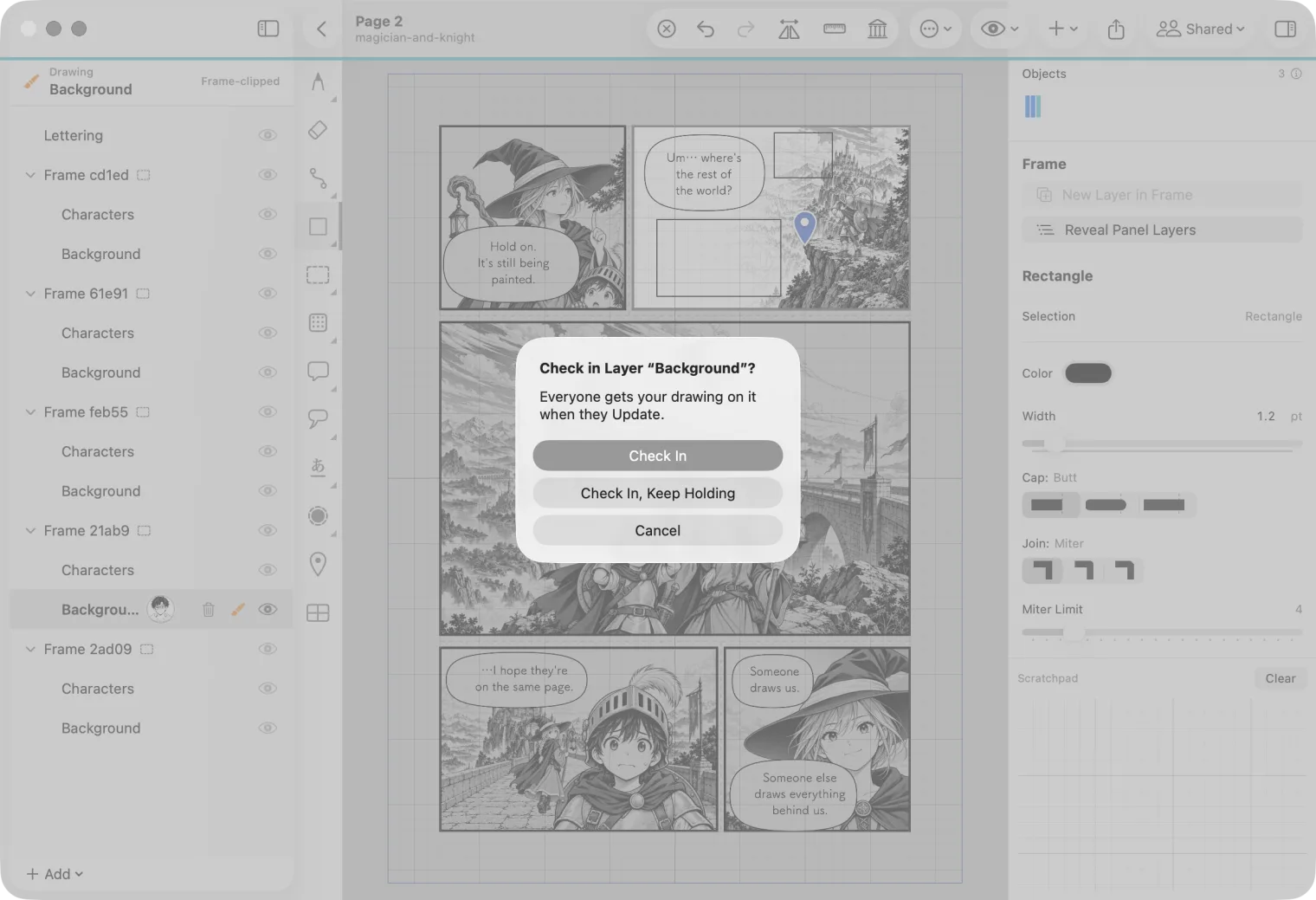
- Check In sends your drawing, and the layer is free again.
- Check In, Keep Holding sends your drawing and keeps the layer, so you can go on.
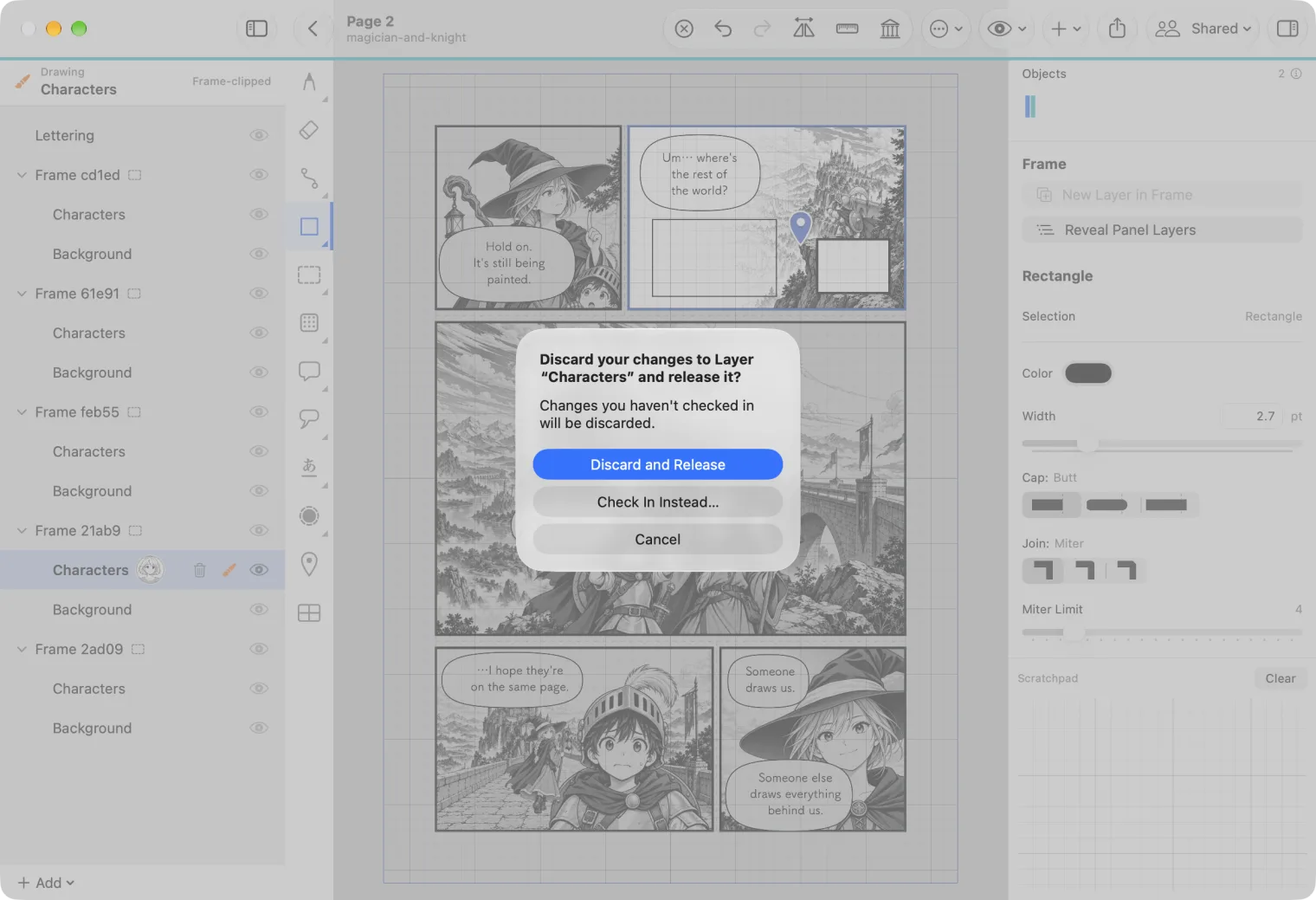
To give a layer back and throw away what you drew on it, choose Release Layer… instead. MangaLoft asks first, and offers Check In Instead….
4. Update to see the others' work
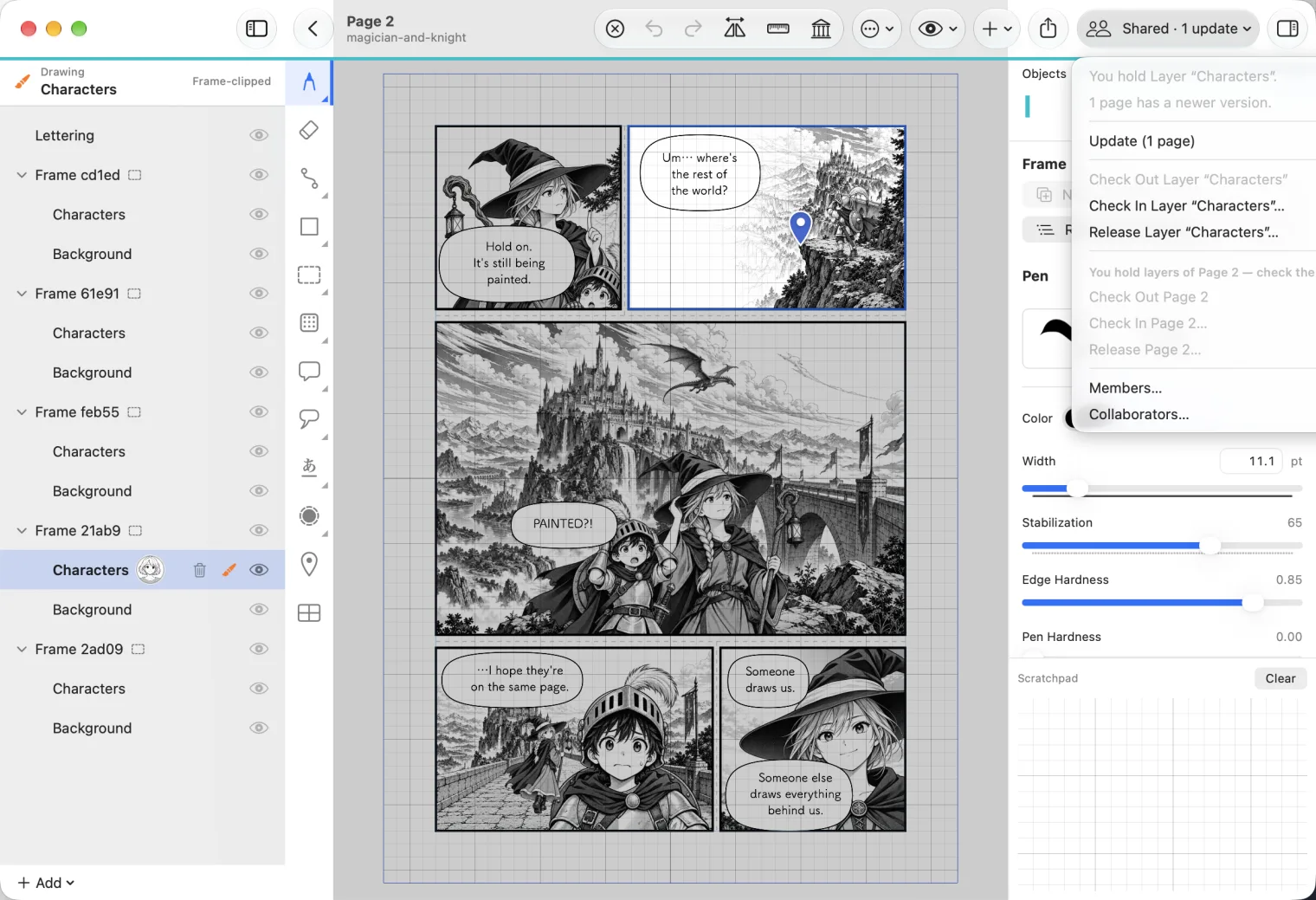
When someone checks in, your Shared menu shows it: Shared · 1 update. Choose Update.
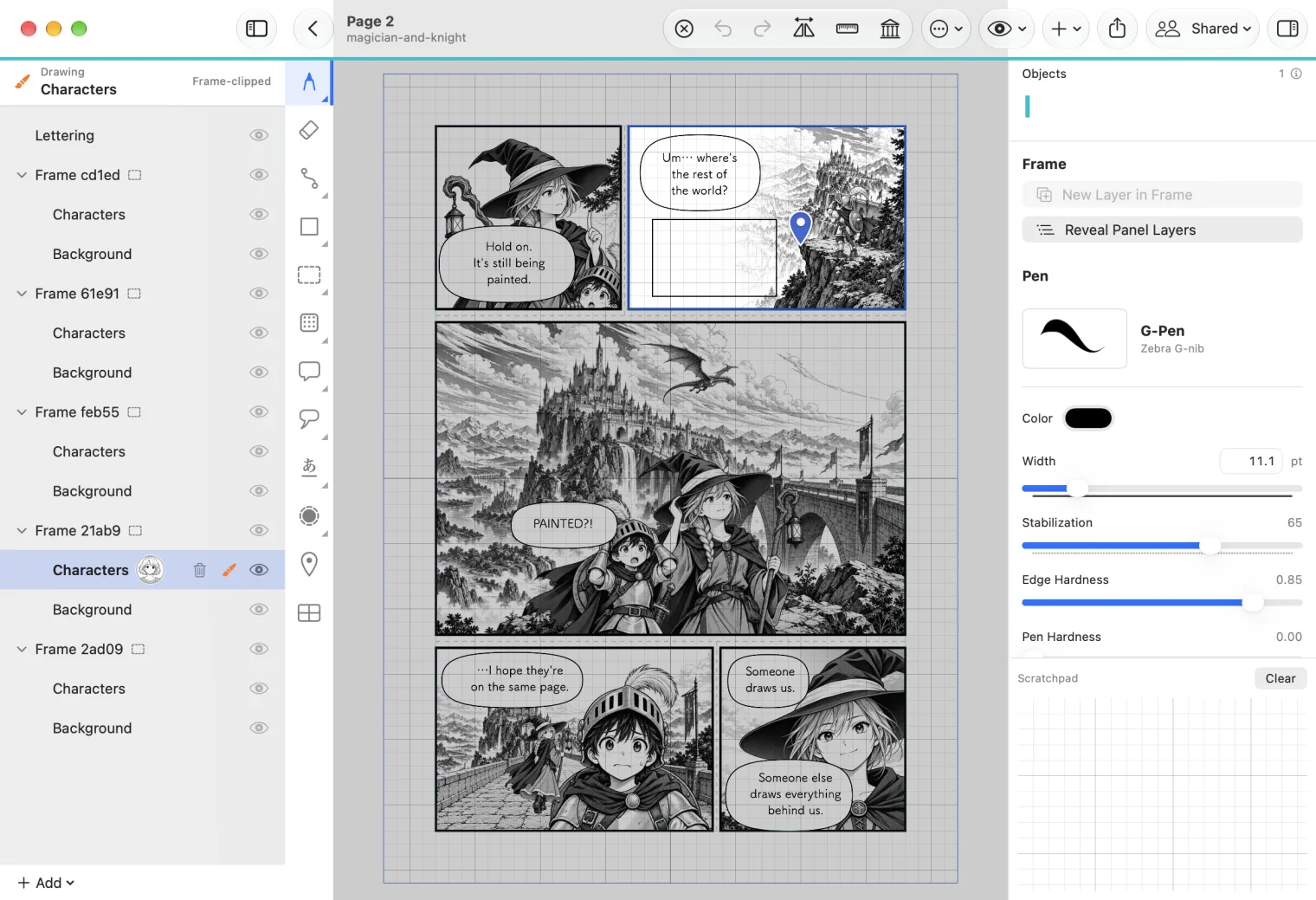
Bob's drawing appears on Alice's page. Nothing changes on your page until you Update.
Refresh, in the Collaboration window, reloads the lists of people and documents. Update brings in drawing.
Or: check out a whole page
For a page that only you will work on, choose Shared ▸ Check Out Page. The top of the layer list says You hold the whole page, and you can change any layer on it.
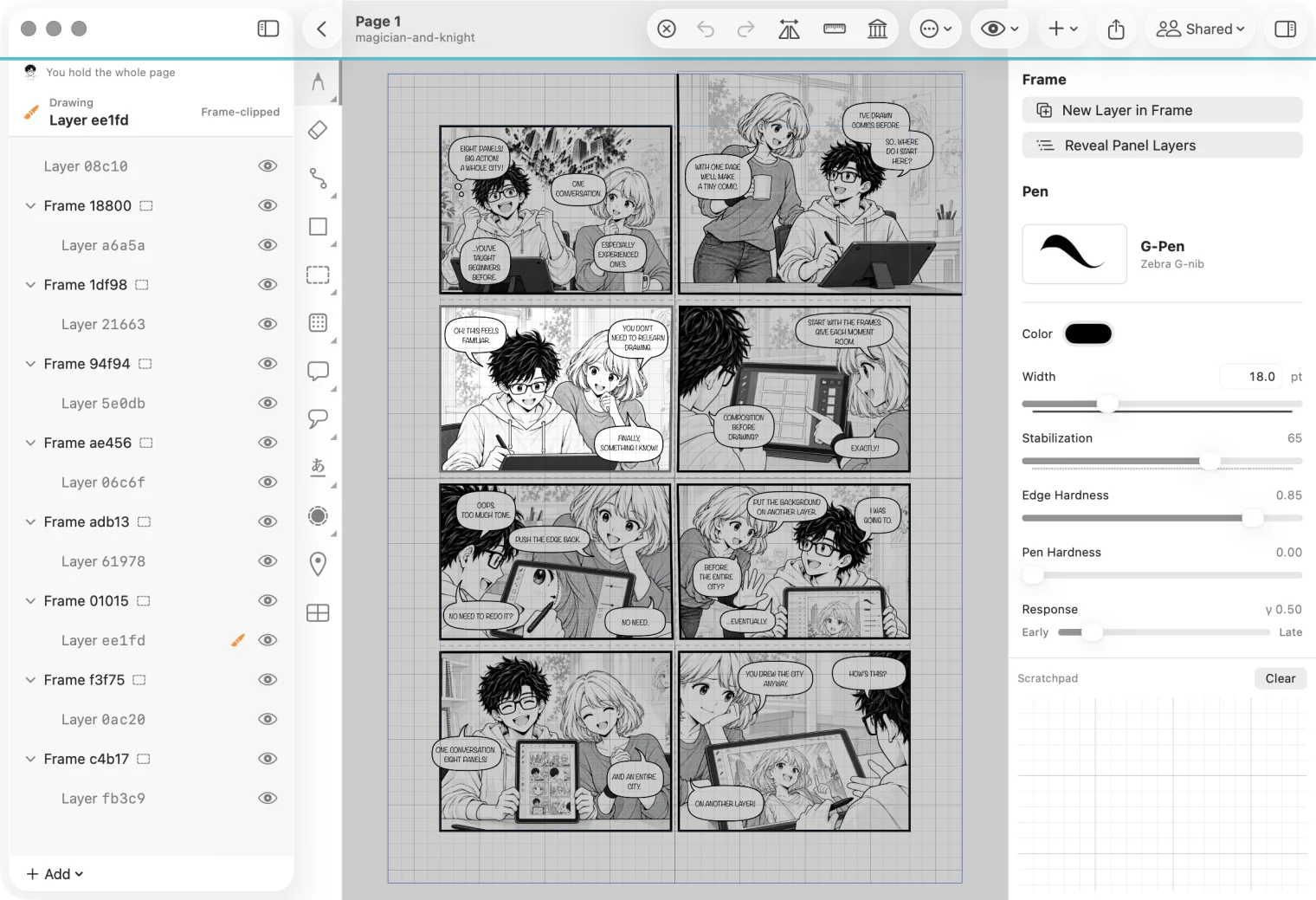
Check it in with Shared ▸ Check In Page…. A page is either held whole or by layers: while you hold layers of a page, check them in before you check out the page.
Kept safe
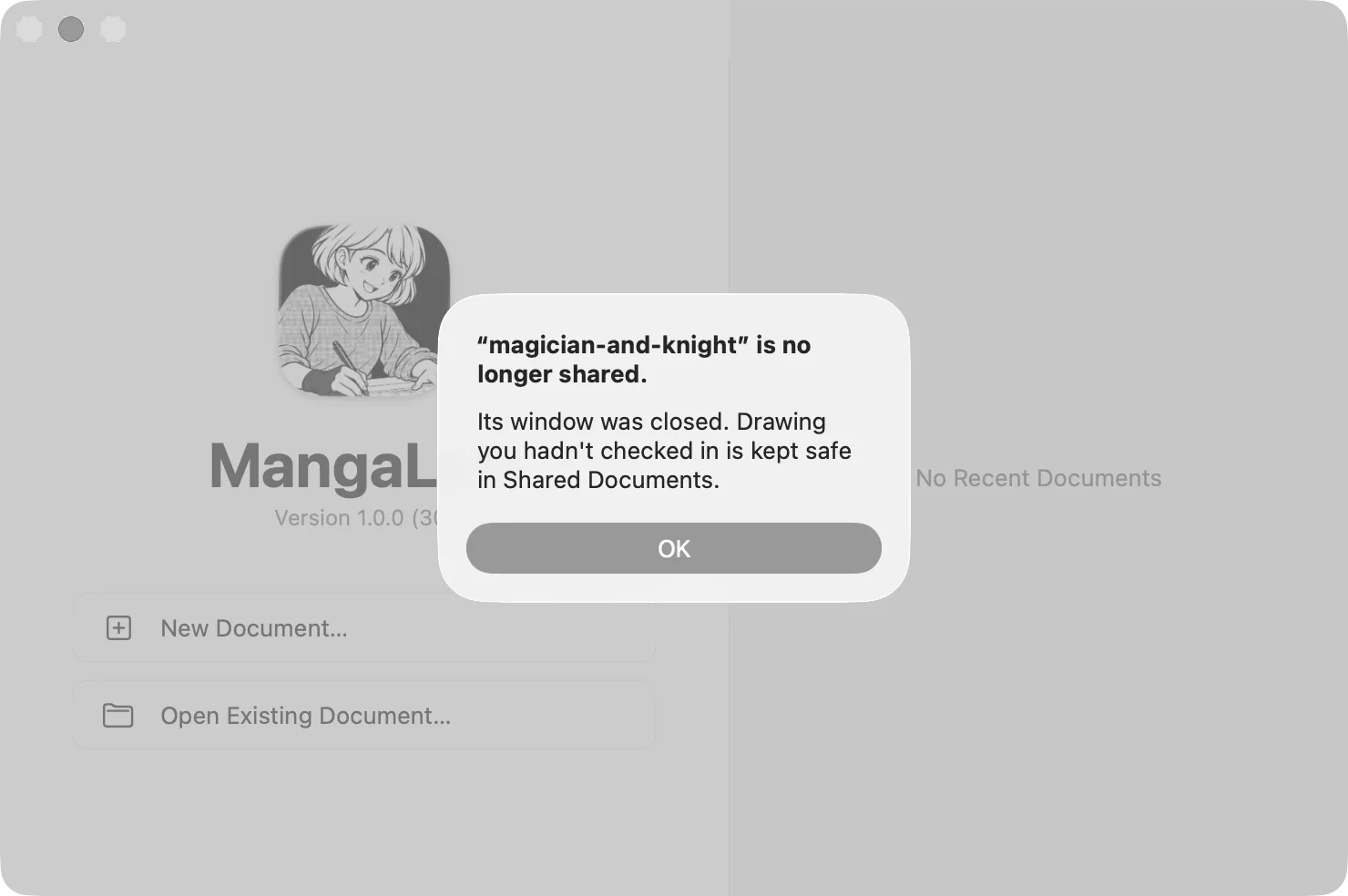
If the owner or an admin releases something you hold, or the manuscript stops being shared before you check in, MangaLoft keeps your drawing safe. It is listed in Shared Documents, under Kept-Safe Work: choose Save as Document… to keep it.
When the manuscript is done: Wrap Up
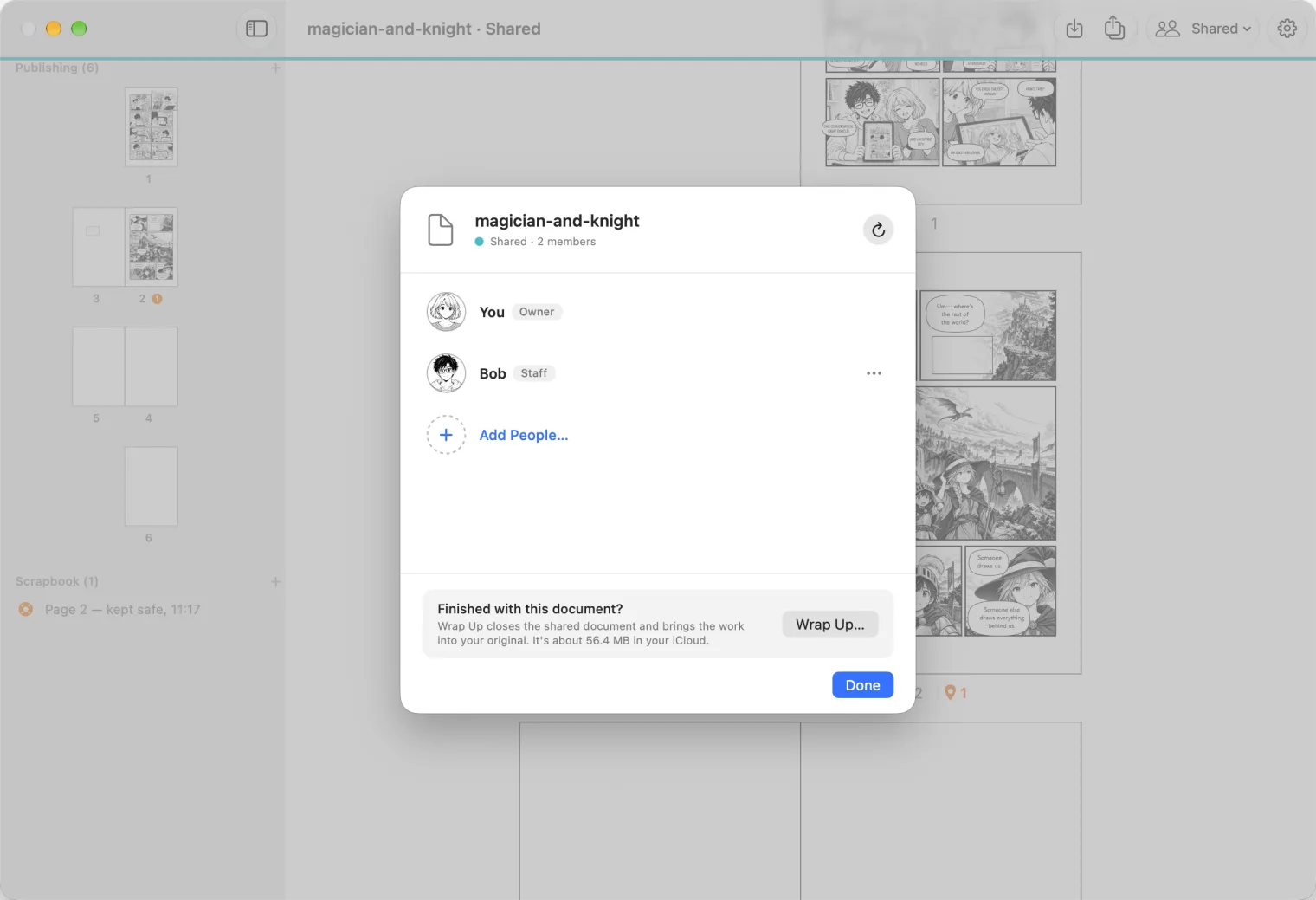
The owner chooses Shared ▸ Members…, then Wrap Up…. Ask everyone to check in first.
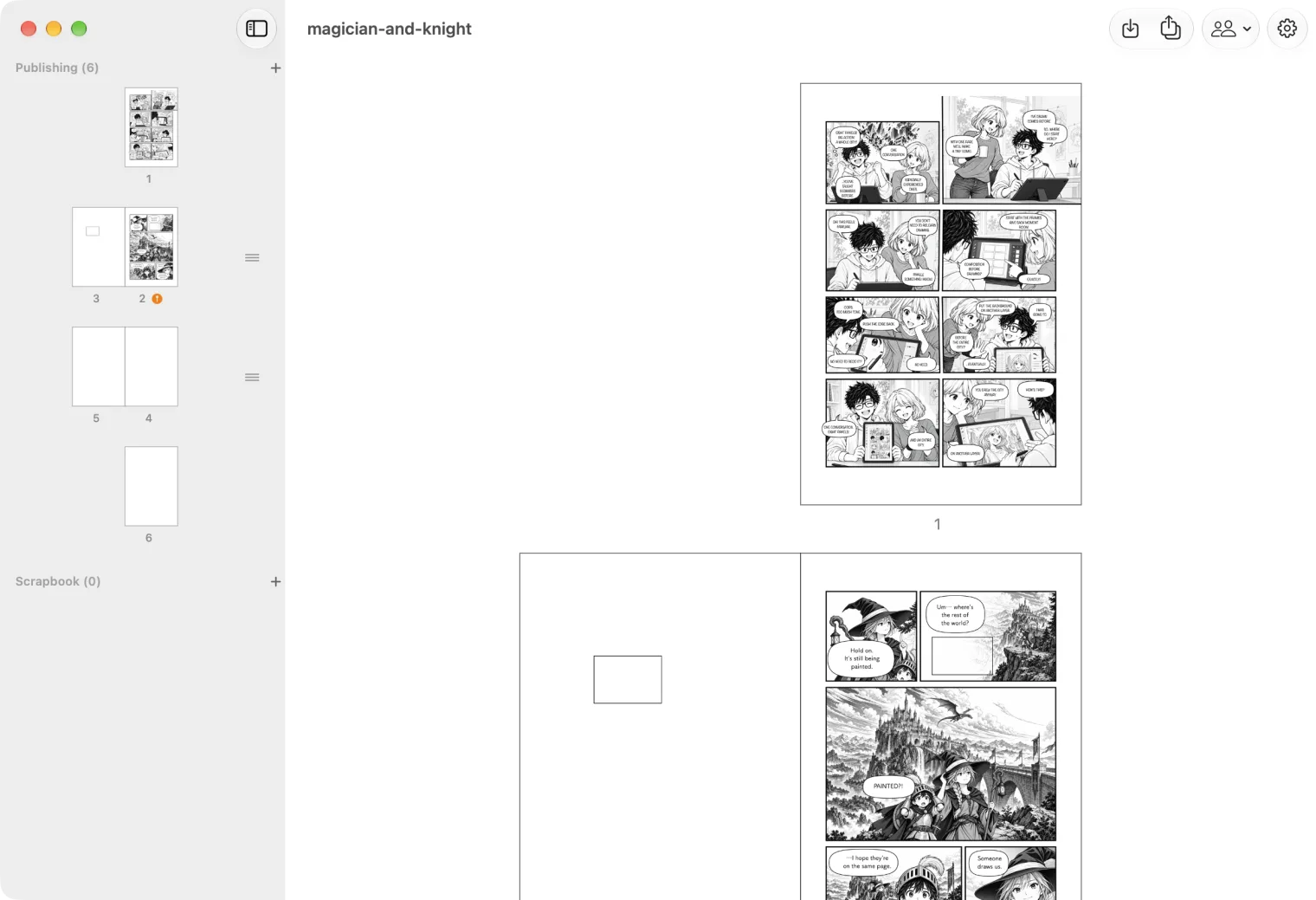
The shared window closes and your own file opens, with everyone's checked-in work in it.
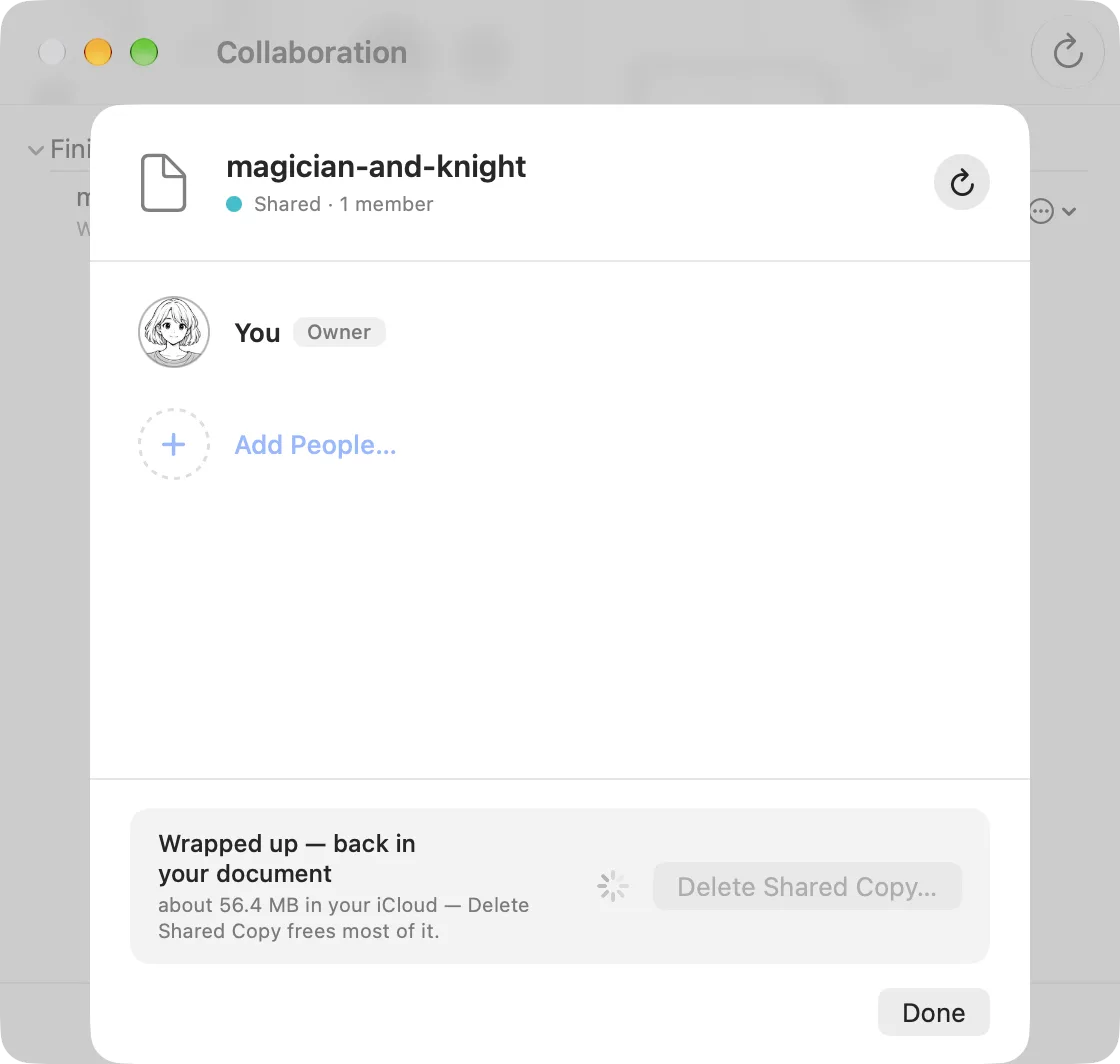
The shared copy stays in your iCloud until you delete it. In Shared Documents, under Finished, open the manuscript's Members… and choose Delete Shared Copy…. Your file keeps the version you wrapped up.
Your collaborators are told the manuscript is no longer shared, and its window closes for them.
Stop working with someone
To end a connection on Mac, open Collaborate ▸ Collaborators… and press the trash button on that person's row. To invite them again later, connect again.
On iPad, tap the people button at the top of the document browser, then open the Collaborators tab and press the trash button on that person’s row.