Connect with a collaborator
Once per person: send your card, approve their request, send one more link.
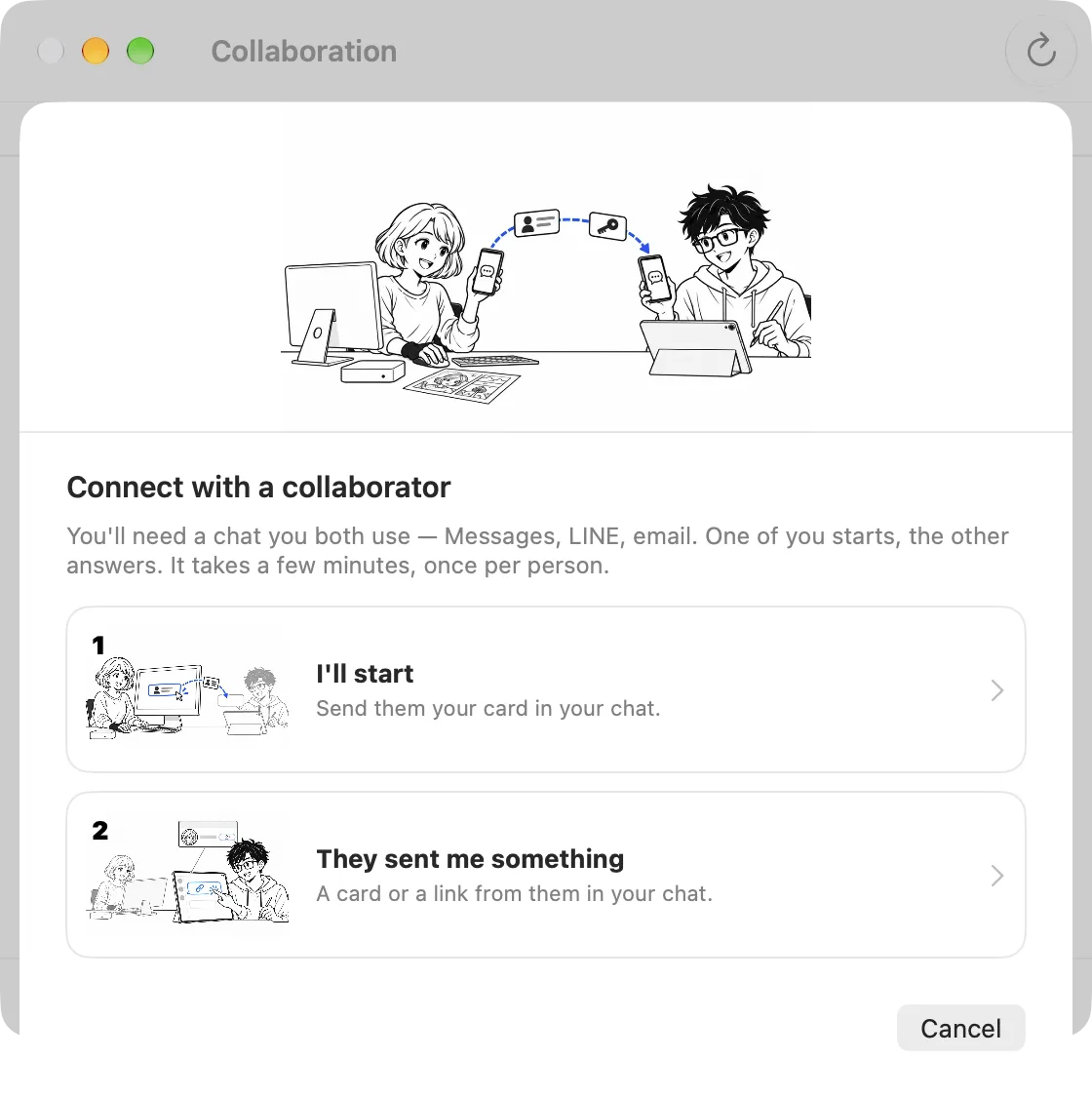
You do this once with each person, and it takes a few minutes. Here Alice starts and Bob answers; either of you can start. Keep your chat open: two links go from Alice to Bob, and one request comes back inside MangaLoft.
1. Alice: send your card
On iPad, tap the people button at the top of the document browser, then open the Collaborators tab.
On Mac, choose Collaborate ▸ Collaborators….
Then choose Add a Collaborator…. Choose I'll start.
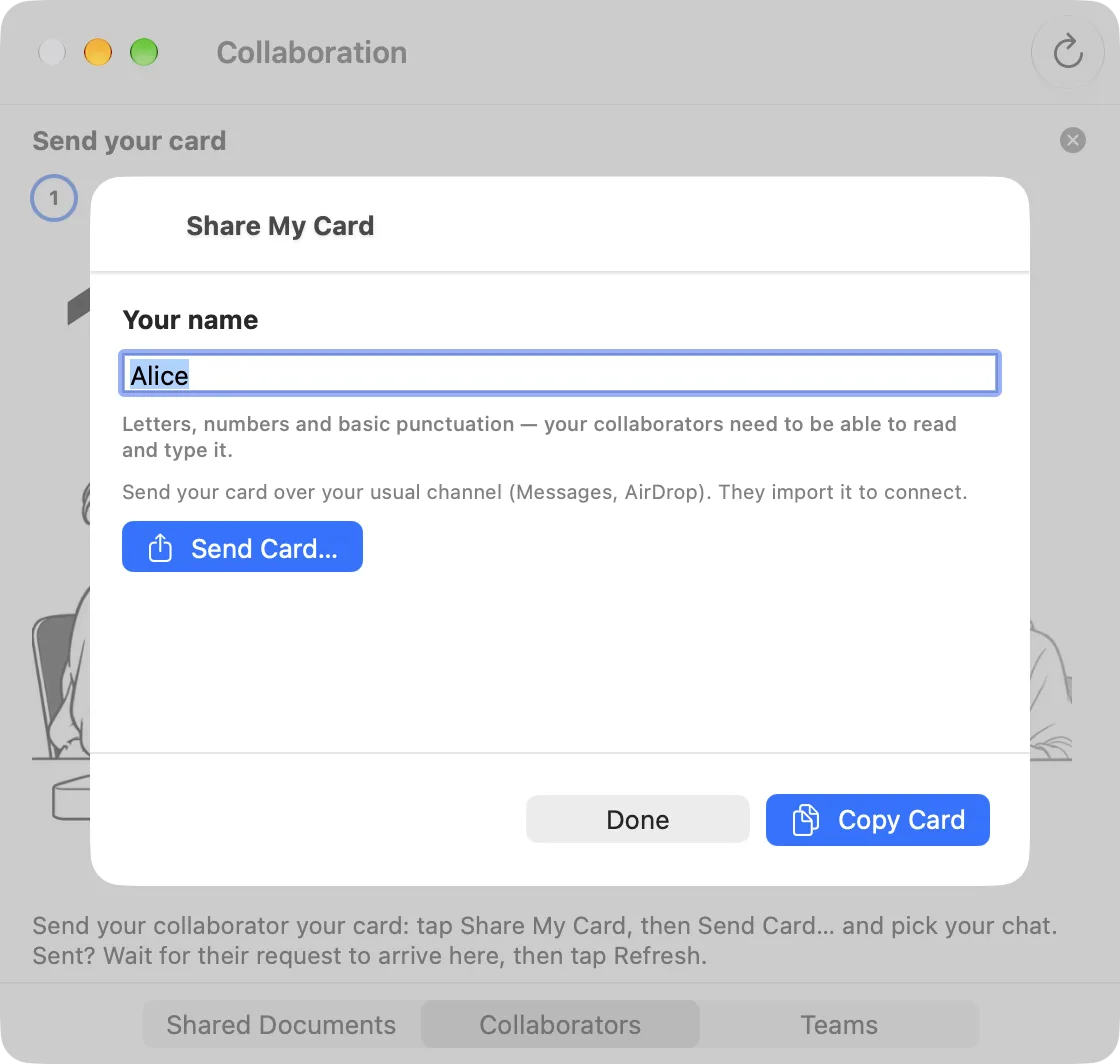
Check your name, then press Send Card… and pick your chat, or Copy Card and paste it there yourself. Your name is what Bob sees.
2. Bob: open the card, and ask to connect
Open the card's link from the chat. MangaLoft opens and says Added Alice from their card. Alice's row says Not finished. Press Request to Connect on her row.
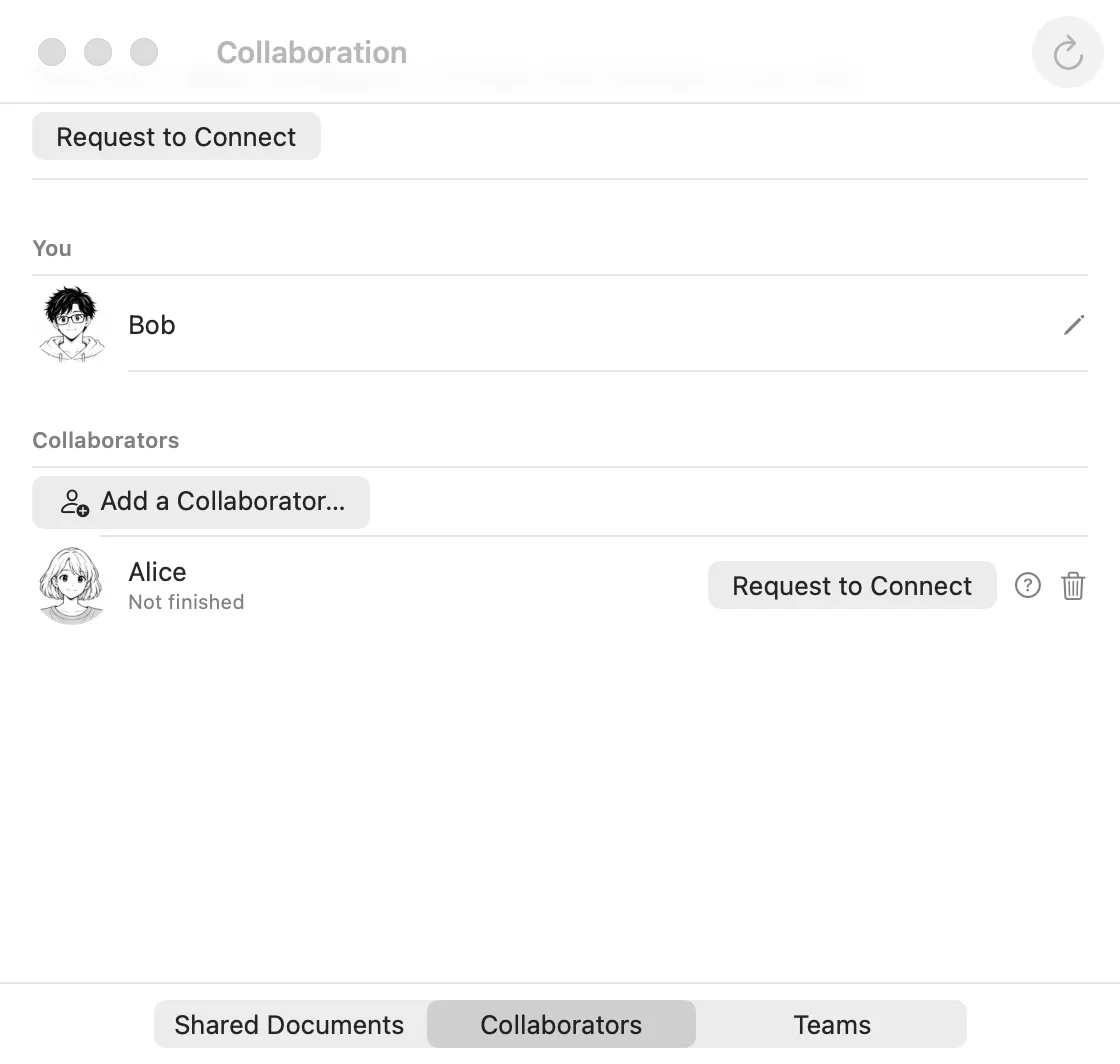
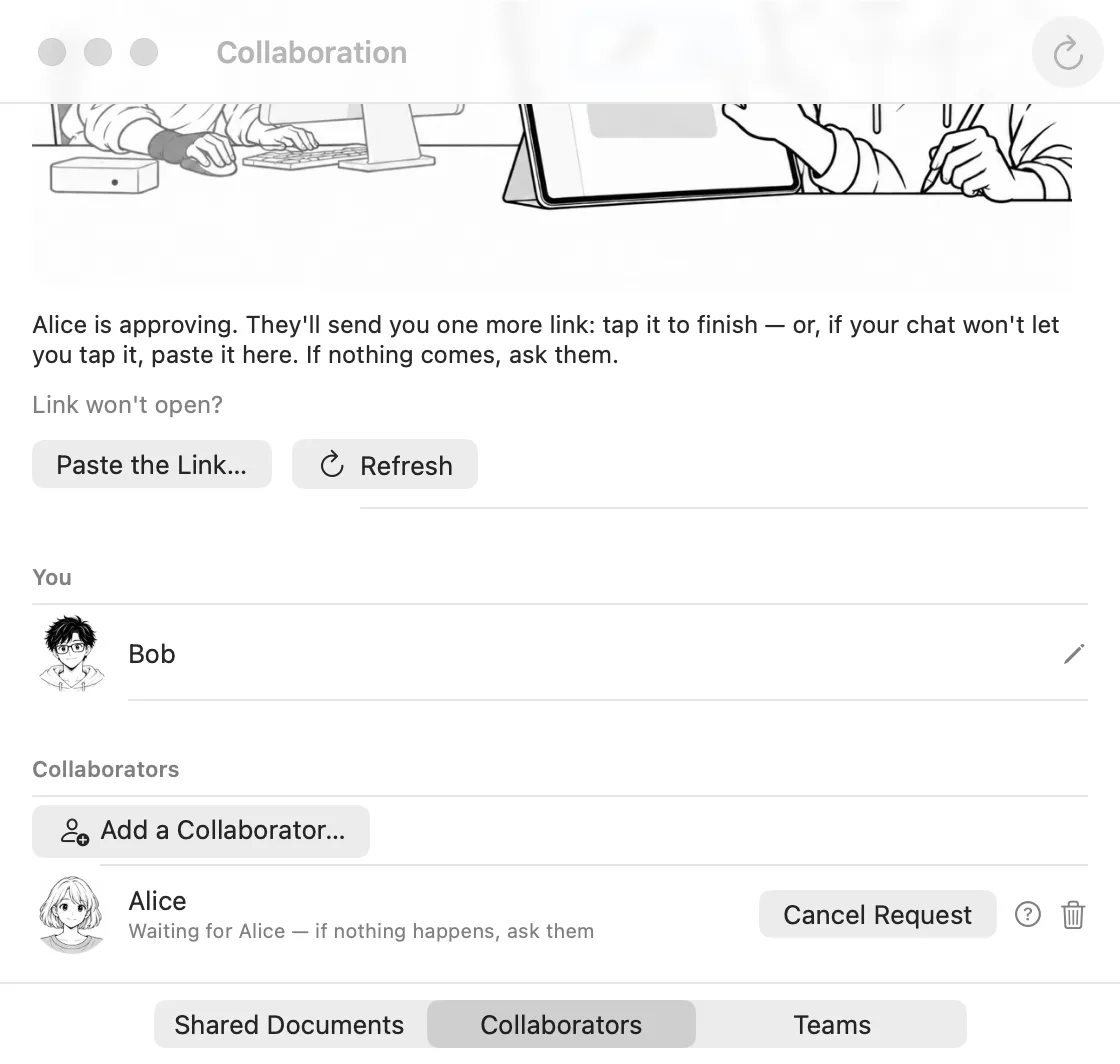
Now Bob waits. His row for Alice reads Waiting for Alice — if nothing happens, ask them.
If the card's link won't open, copy it, then choose Add a Collaborator… ▸ They sent me something and paste it.
3. Alice: approve
Press Refresh. The request appears under Requests, with the name of Bob's Apple Account. Check it is the person you sent your card to, then press Approve.
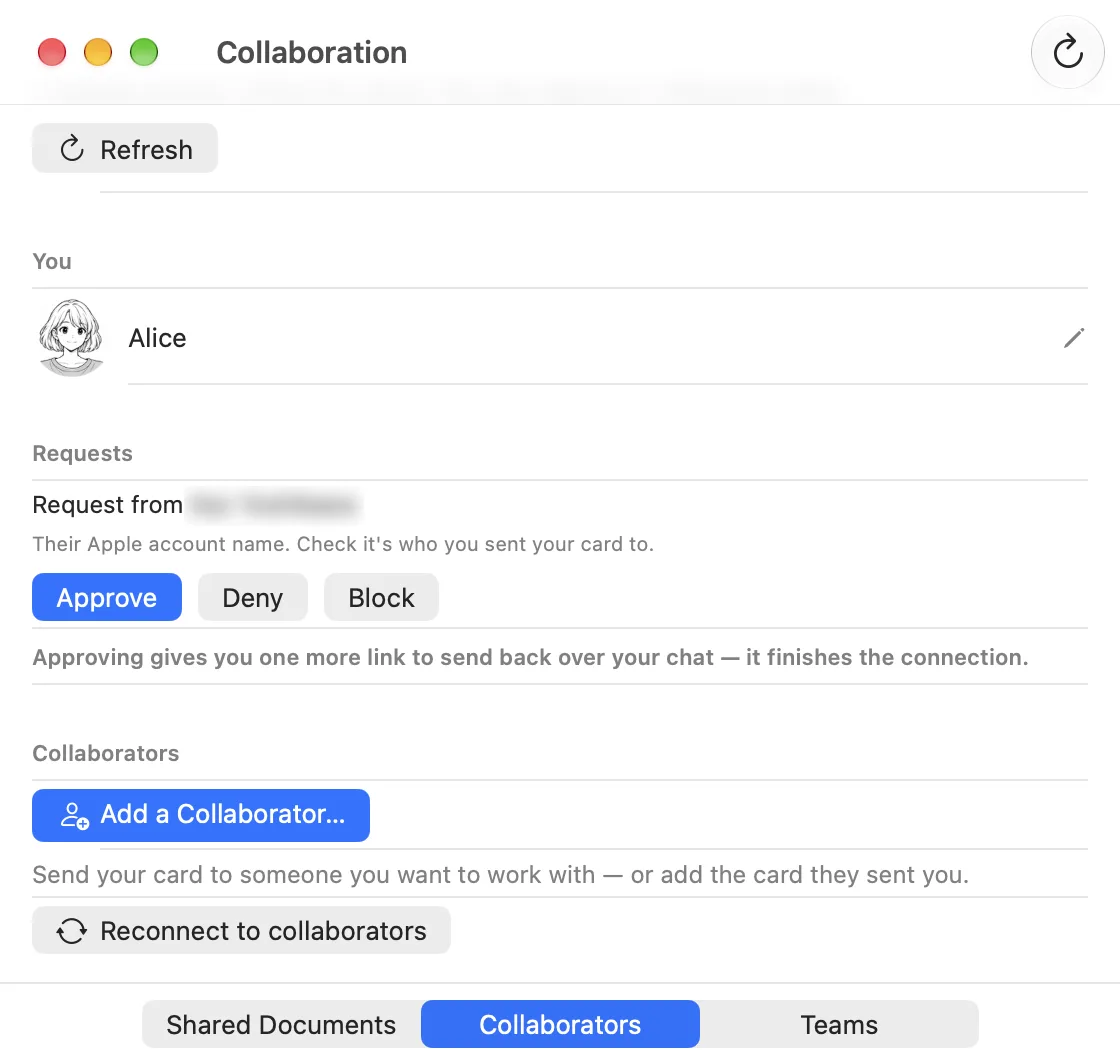
If you don't recognise the name, press Deny.
4. Alice: send one more link
Approving gives you an Invite Link. Press Send Link… and send it to Bob in the same chat. This second link finishes the connection.
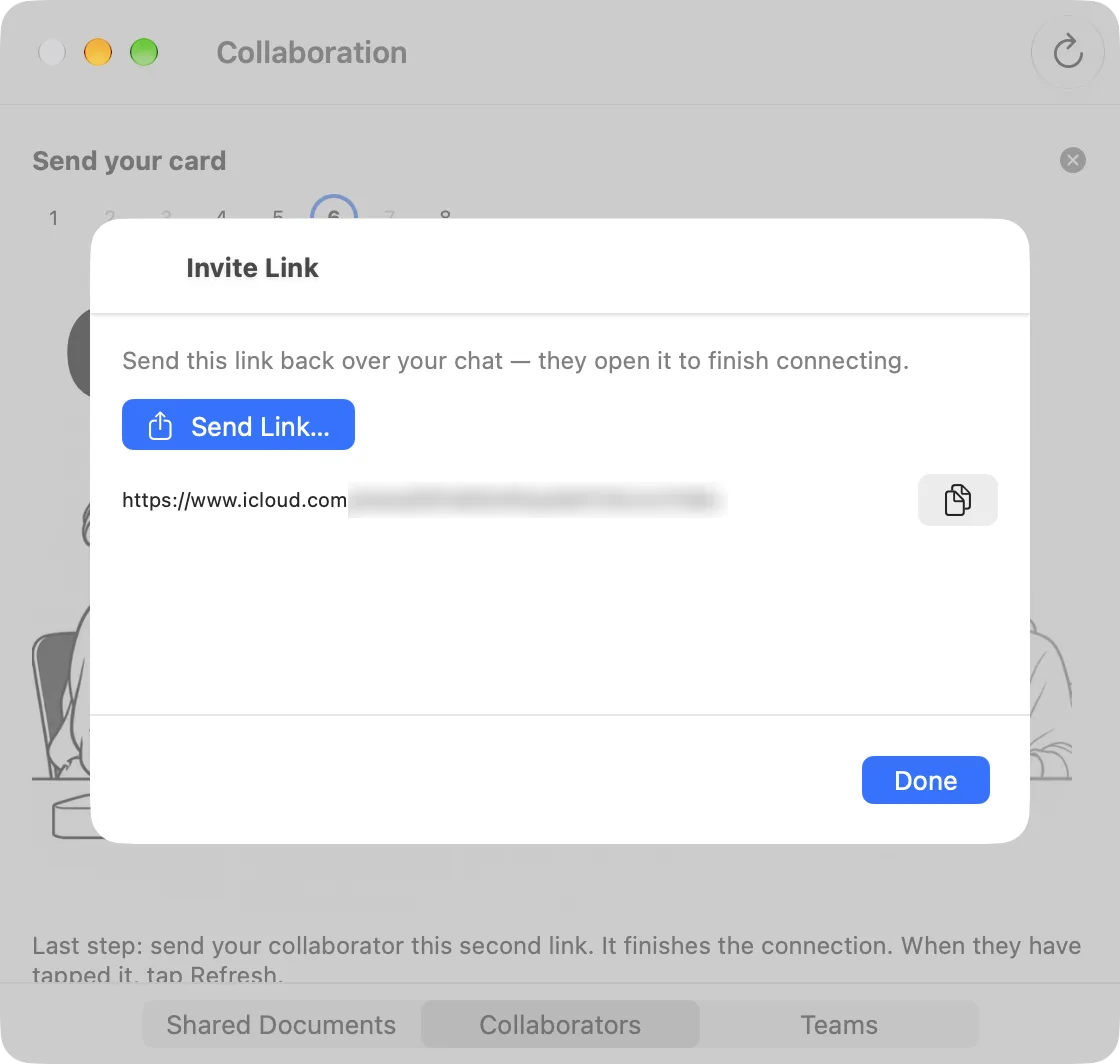
5. Bob: open the link
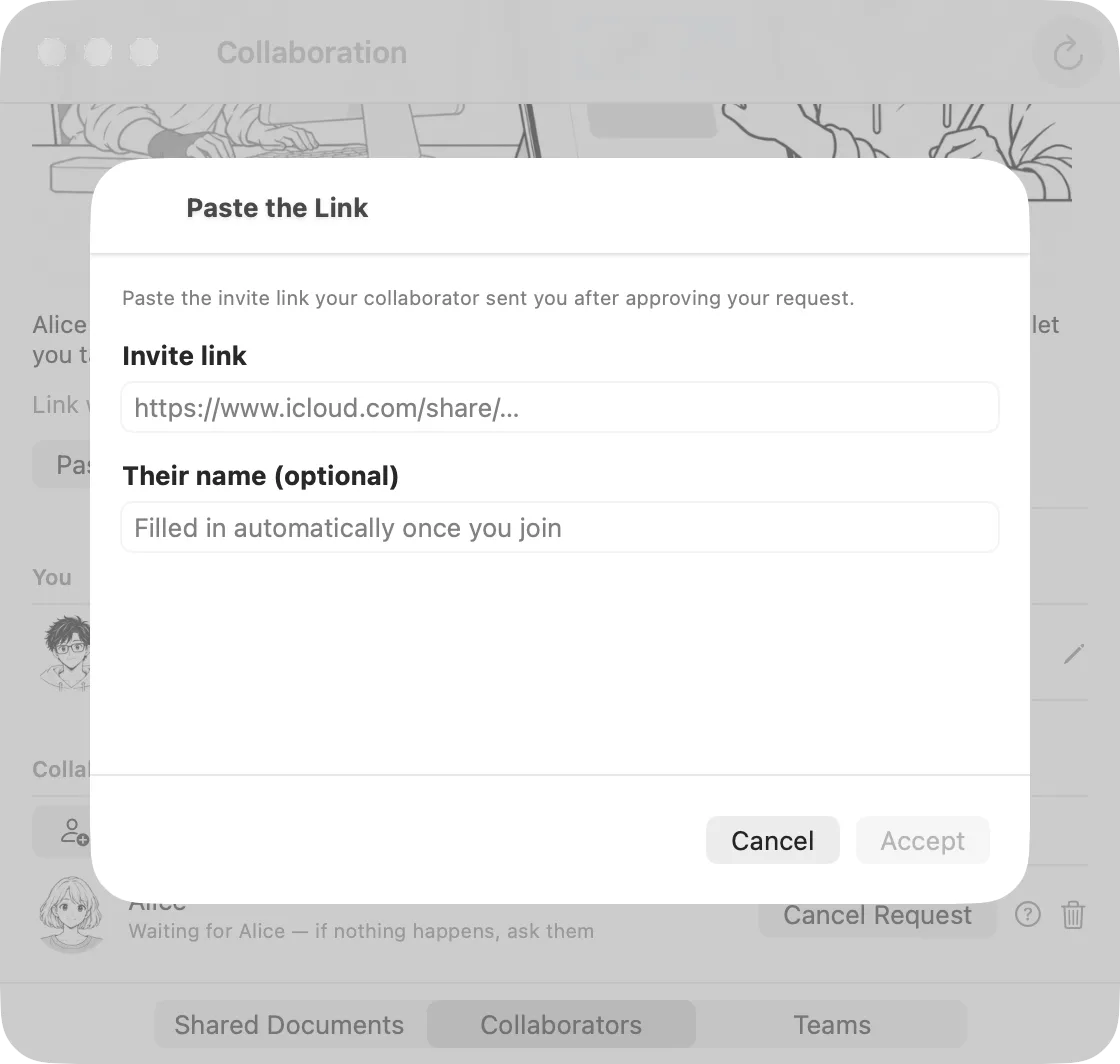
Open the link from the chat. If it won't open, press Paste the Link…, paste it, and press Accept. MangaLoft says Joined.
Connected
Each of you now sees the other's name and picture, marked Connected. Press Refresh if it hasn't changed yet.
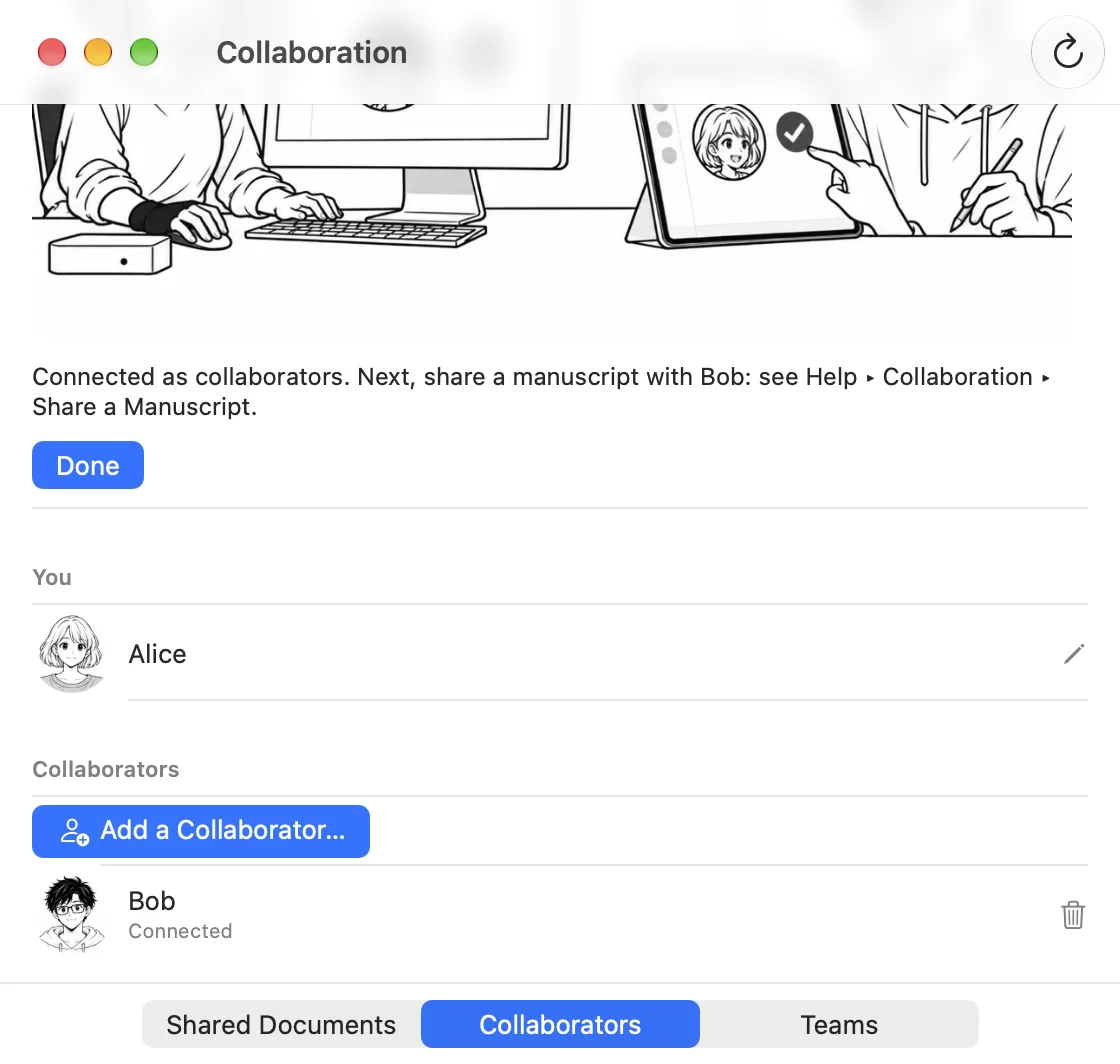
Nothing is shared yet. Next, Alice shares a manuscript.